Tuesday, March 10, 2015
How to make files searchable in Google Drive
When a file of a common type is uploaded to Google Drive, it is automatically indexed so users can easily search for it in their Drive files. Google Drive also tries to recognize objects and landmarks in images uploaded to Drive.
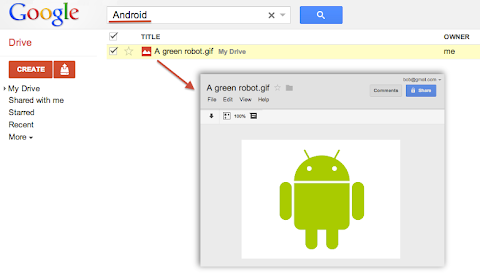
For instance, if a user uploaded a list of customers as an HTML, XML, PDF or text file he could easily find it later by searching for one of its customer’s name that is written inside the file. Users could also upload a picture of their favorite green robot, then search for “Android” and Google Drive would find it in their Drive:
Metadata such as the file’s title and description are always indexed so users can always find a file by name. However, Google Drive does not automatically index the content of less common or custom file types. For example if your application uploads or creates files using the custom MIME-type custom/mime.type, then Drive would not try to read and index the content of these files and your users would not be able to find them by searching for something that’s inside these files.
To have Google Drive index the content of such files you have to use one of the following two options available when uploading files through the Google Drive API.
useContentAsIndexableText URL parameter
We recently added a way for you to indicate that the file you are uploading is using a readable text format. In the case where your file data format is text based — for instance if you are using XML or JSON — you can simply set the useContentAsIndexableText URL parameter to true when uploading the file’s content to Drive. When this flag is set Google Drive will try to read the content of the file as text and index it.
indexableText attribute
There is a more flexible approach which is to set the indexableText attribute on the File Metadata. You can set the value of the indexableText attribute which is a hidden — write-only — attribute that we will index for search. This is very useful if you are using a shortcut file — in which case there is no content uploaded to Google Drive — or if you are using a non-text or binary file format which Google Drive won’t be able to read.
Have a look at our Google Drive API references or watch our latest Google Developer Live video about the topic to learn more.
 | Nicolas Garnier Google+ | Twitter Nicolas Garnier joined Google’s Developer Relations in 2008 and lives in Zurich. He is a Developer Advocate for Google Drive and Google Apps. Nicolas is also the lead engineer for the OAuth 2.0 Playground. |

Wednesday, March 4, 2015
How to Have Both Portrait and Landscape Slides in One PowerPoint! ish!
For those of you interested, here was the final tally of the poll!

Before I start the tutorial, I do have to post a slight "disclaimer" on this post! PowerPoint itself does not allow you to have both portrait and landscape slides in the same presentation. Since so many of you asked about this, I wanted to be sure to address your issues... even though I cant change the limitations of the programs itself!
I pretty much detail this in the tutorial, but youll need to think about the reason you would want both portrait and landscape slides in a presentation. Personally, I could think of two reasons:
- To make an actual presentation (e.g. using PowerPoint for what it was meant to be used for)
- To make printables for your classroom (e.g. the "teacher" way to use PowerPoint! lol!)
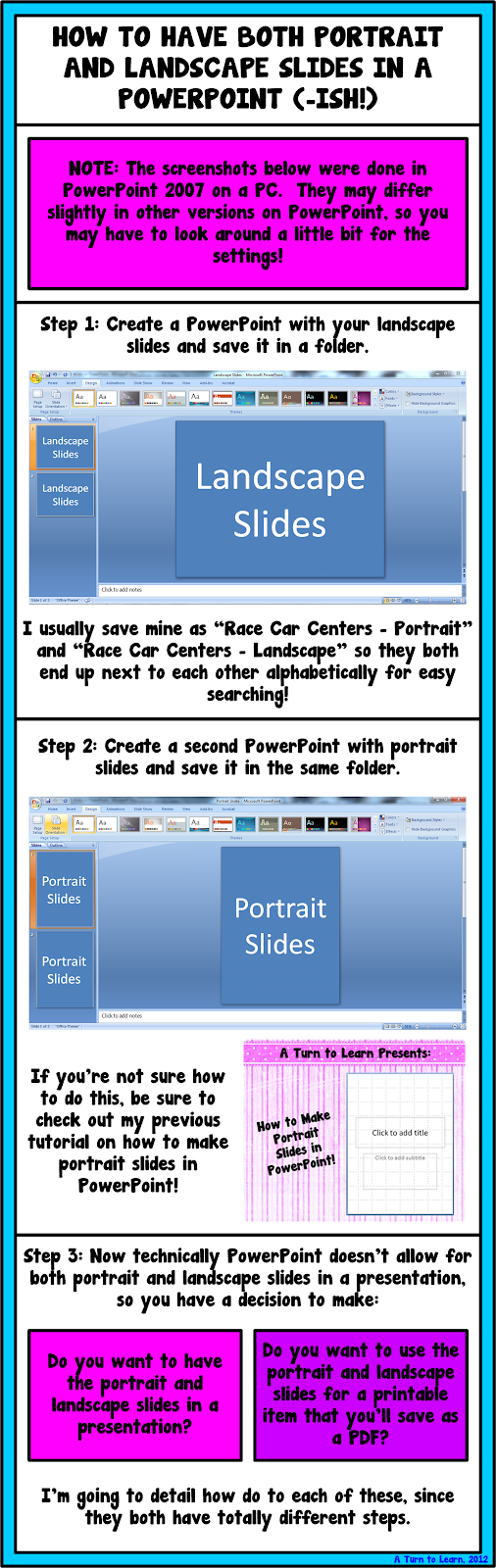
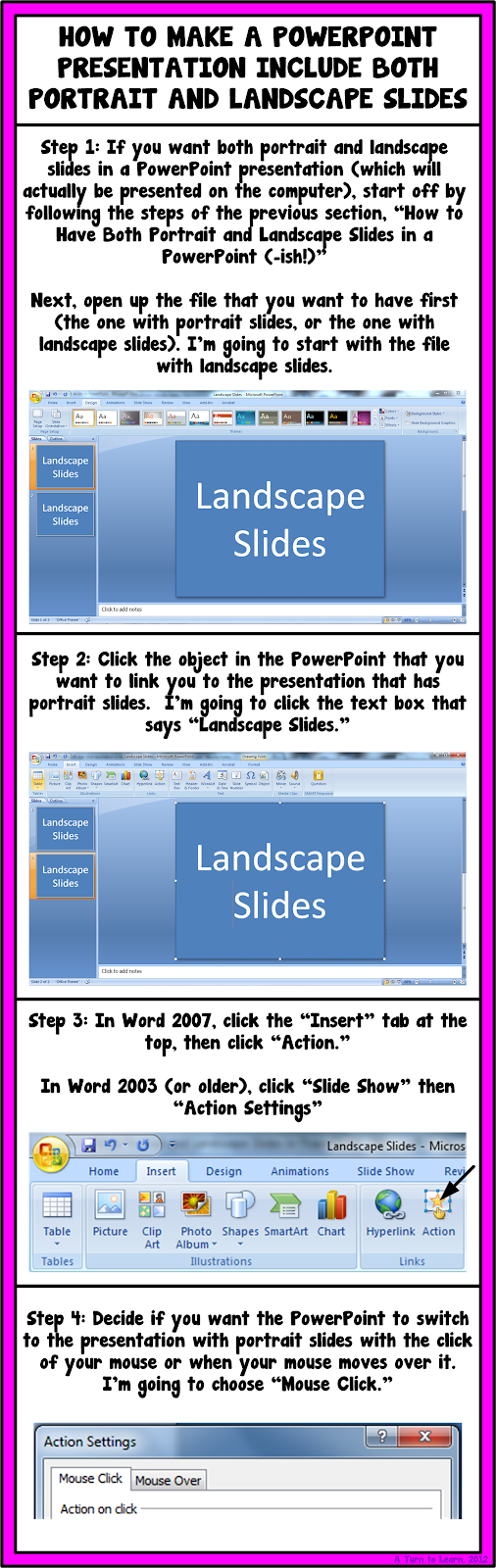

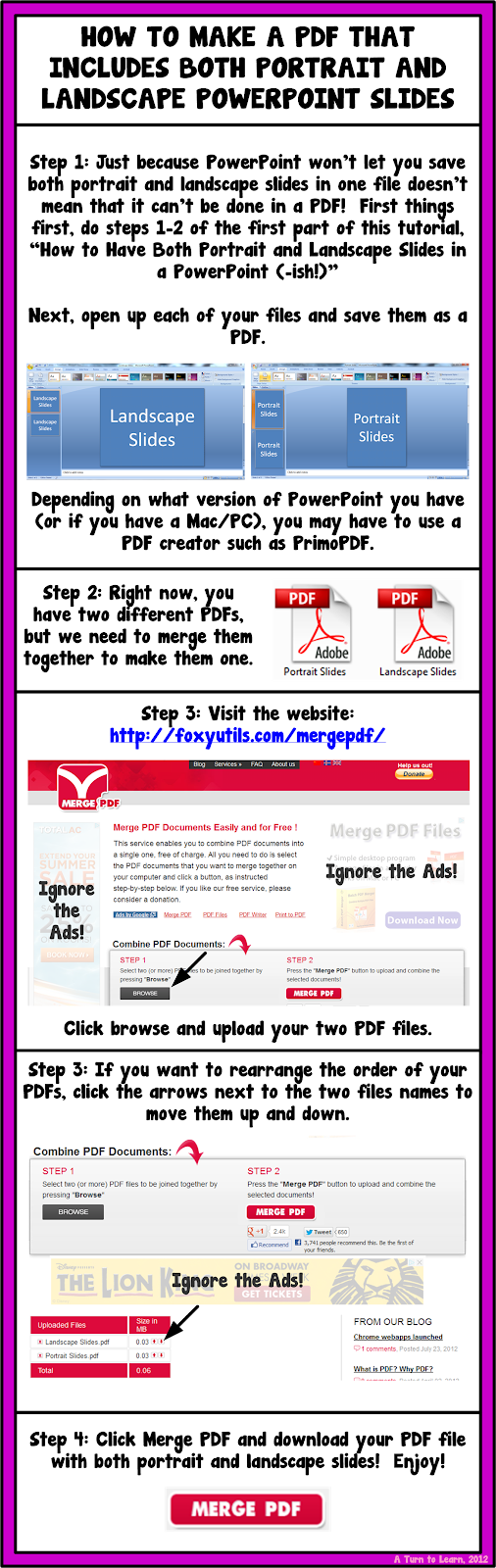
I hope those workarounds helped!

For next weeks poll, Im going to add how to embed fonts in a Microsoft Word/PowerPoint document!
Tuesday, March 3, 2015
IMPORTANT!!! How to Continue Following Your Favorite Blogs by Switching to Bloglovin’
Basically, for anyone who hasnt read all of the posts circulating everyone elses blogs... you MUST make this switch before July 1, 2013 or you could risk losing all of the blogs you follow!
Well, with this in mind, I decided to extend the poll for another week and write up an emergency post: how to continue to follow you favorite blogs! Its a little bit of a nuisance at first, but hopefully the change will be for the better!


The poll for next week will remain the same, but expect some surprise tutorials this week regarding Bloglovin to help make the switch a bit easier for you!
Monday, March 2, 2015
How to Put Pictures Side By Side in Blogger

This was very popular on the poll!

Before you start the tutorial, I want to forewarn you that doing this can be kind of intimidating since it involves code. I have my fingers crossed for you that you finish it in steps 1-3 (which involves no code)... but if not, just follow the steps in order. Good luck!


 |  |
For next weeks poll, Ill add another blogger option: how to show HTML code on your blog (similar to what I did after step 5, above).
How to Take a Screenshot of Your Computer Screen!
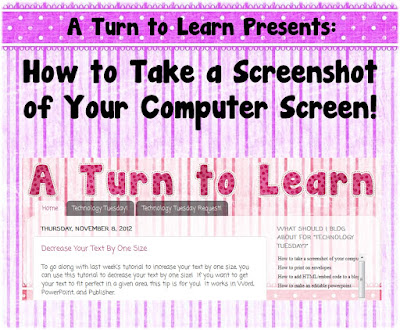

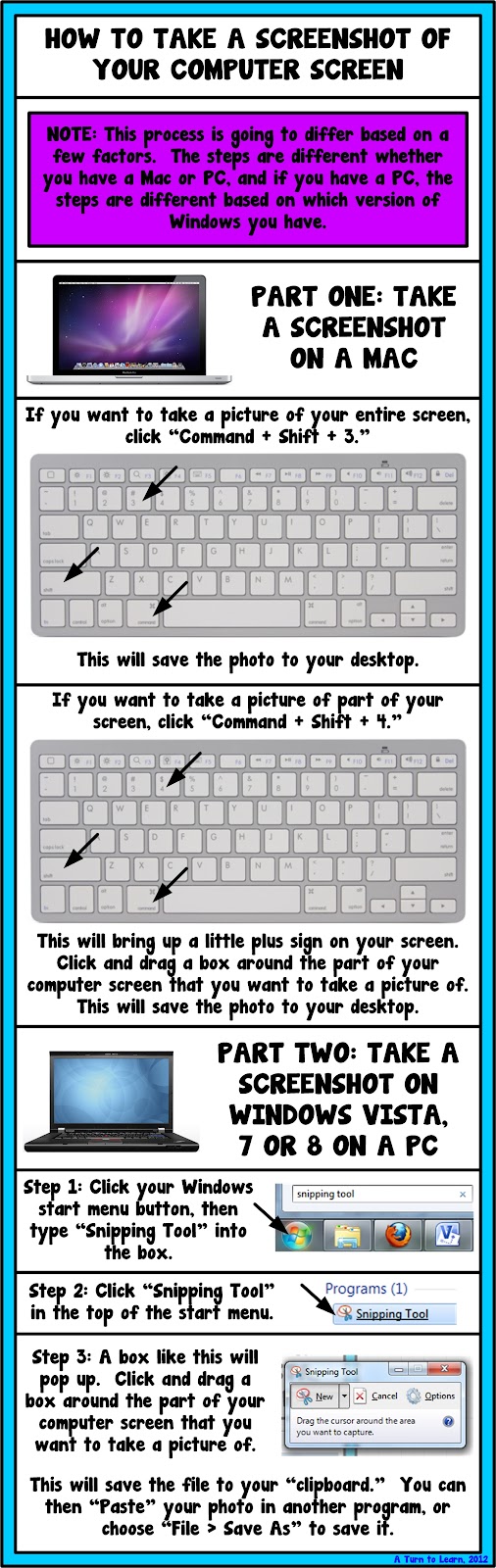
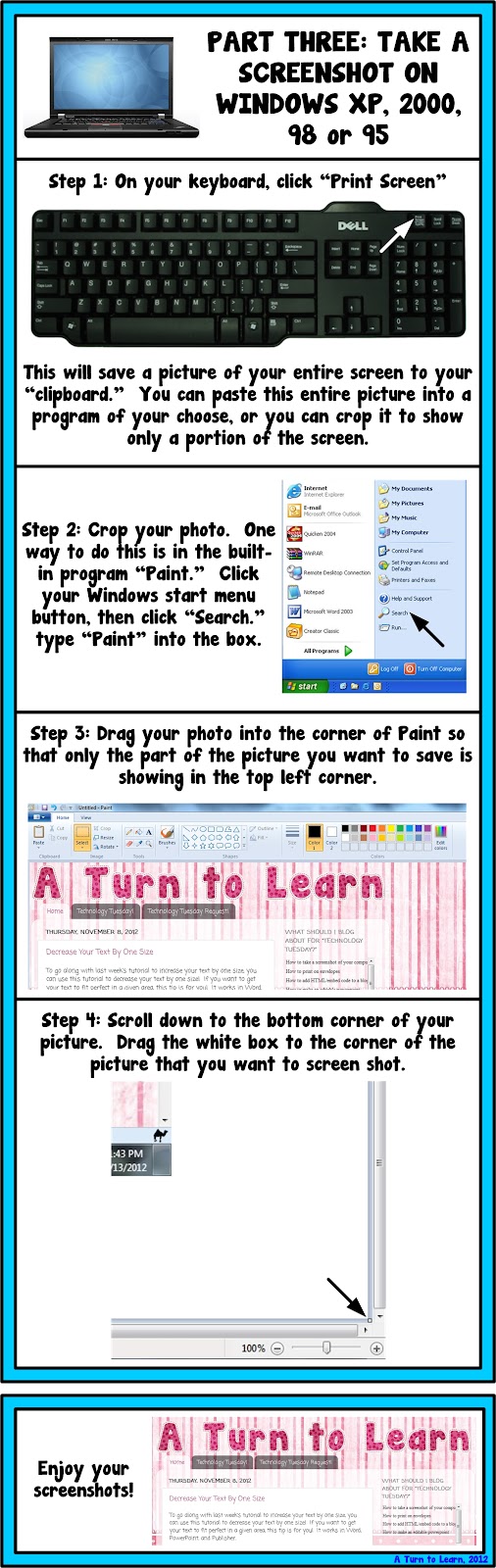
As for next weeks poll, Im going to add a how to embed videos in smart notebook. I havent done any Smart Notebook tutorials yet and I would really love to... so Im curious to see how this one fairs in the poll!
How to Make a Form for Your Blog or Website!

Heres the poll so you can see just how close it was!

Now... onto the tutorial!


Now, I know that I didnt detail how to embed the form on your blog... if thats something youre interested in doing, be sure to vote on the poll for "How to add HTML/embed code to a blog post!" For those of you who are familiar with how to add the code on your blog, you can use the embed code from the drop-down menu in the picture just above this text!
For next weeks poll, Im going to add another request - how to take the background out of a photograph (so that the photo has a white background!
Sunday, March 1, 2015
How do Students Use Technology

Via: OnlineEducation.net
Reflections How to Show a Documents Reading Level in Word!
I truly miss her more than words can say.

A week after finding out that my Grandma passed, I found out that my ex-boyfriend had passed as well. He was only 25. Though he and I grew apart and havent spoken for years, I truly wished only the best for him. He was my first "love" and he has always had a special place in my heart. As much as I was left speechless by my Grandmas death, I am having just as hard of a time finding the words to express my deepest sympathies and regrets for his death as well.
I truly believe that everything happens for a reason, but I can never find or explain the reasons why we have to lose the ones we love. It truly breaks your heart and makes you question the world. Ive honestly felt like nothing has been going right lately. As hard as it is, I keep reminding myself of something my mom told me once:

As hard as it is to cope with lose and to cope with change, I know I am fortunate for the relationships that I have had and that there are so many more who are going through worse. As hard as things are to cope with or manage, we somehow need to put one foot in front of the other and try to move on. To the same idea, I found this other quote on pinterest and I really like it:

The past week and a half, I have spent a good amount of time crying and a lot of time reminiscing. Fortunately Im surrounded by supportive family, friends, neighbors, co-workers and followers who have put up with my distance and my ramblings. So for now, my rambling will cease for the time being and Ill put one foot in front of the other. Perhaps getting myself back on track with my blog and my life will help ease the pain.
This two week long poll had a lot of votes, and the winner was the most recent addition to the poll... how to find out a Microsoft Word documents reading level. This tutorial is actually SUPER EASY!!!

Here are the official poll results...

And here is the incredibly easy tutorial!!!

As for next weeks poll, Ill be adding a blogger tutorial: how to host a linky party!
Friday, February 27, 2015
How to Make an Editable PowerPoint and Lock Down Clipart
This week the winner of the poll was how to make an editable powerpoint! For anyone who has purchased clipart online for your teacher products, youll notice it always says that the images need to be locked down... but how do you lock the images down and still keep an item editable!? Well... heres how!

This was a close one in the poll!

Now, onto the tutorial!


Wednesday, February 25, 2015
How to Claim Your Blog on Bloglovin


