Tuesday, March 10, 2015
How to make files searchable in Google Drive
When a file of a common type is uploaded to Google Drive, it is automatically indexed so users can easily search for it in their Drive files. Google Drive also tries to recognize objects and landmarks in images uploaded to Drive.
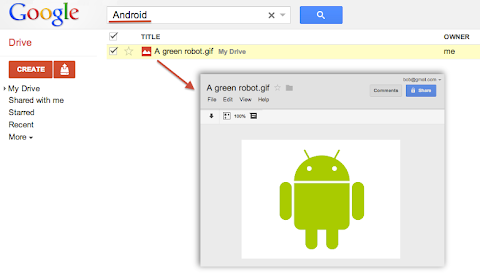
For instance, if a user uploaded a list of customers as an HTML, XML, PDF or text file he could easily find it later by searching for one of its customer’s name that is written inside the file. Users could also upload a picture of their favorite green robot, then search for “Android” and Google Drive would find it in their Drive:
Metadata such as the file’s title and description are always indexed so users can always find a file by name. However, Google Drive does not automatically index the content of less common or custom file types. For example if your application uploads or creates files using the custom MIME-type custom/mime.type, then Drive would not try to read and index the content of these files and your users would not be able to find them by searching for something that’s inside these files.
To have Google Drive index the content of such files you have to use one of the following two options available when uploading files through the Google Drive API.
useContentAsIndexableText URL parameter
We recently added a way for you to indicate that the file you are uploading is using a readable text format. In the case where your file data format is text based — for instance if you are using XML or JSON — you can simply set the useContentAsIndexableText URL parameter to true when uploading the file’s content to Drive. When this flag is set Google Drive will try to read the content of the file as text and index it.
indexableText attribute
There is a more flexible approach which is to set the indexableText attribute on the File Metadata. You can set the value of the indexableText attribute which is a hidden — write-only — attribute that we will index for search. This is very useful if you are using a shortcut file — in which case there is no content uploaded to Google Drive — or if you are using a non-text or binary file format which Google Drive won’t be able to read.
Have a look at our Google Drive API references or watch our latest Google Developer Live video about the topic to learn more.
 | Nicolas Garnier Google+ | Twitter Nicolas Garnier joined Google’s Developer Relations in 2008 and lives in Zurich. He is a Developer Advocate for Google Drive and Google Apps. Nicolas is also the lead engineer for the OAuth 2.0 Playground. |

Saturday, February 14, 2015
HowTo Transfer files via SSH
Transfer foobar.avi from a remote computer to your computer:
scp batman@192.168.1.100:/home/remotepc/foobar.avi /home/foobaring/foobar.avi
"dont forget the colon between 192.168.1.100 and /home/remotepc"
Transfer foobar.avi from your computer to a remote computer:
scp /home/foobaring/foobar.avi batman@192.168.1.100:/home/remotepc/foobar.avi
Tranfer folders from a remote computer to your computer:
scp -r batman@192.168.1.100:/home/remotepc/remote-folder /home/foobaring/local-folder
"this will copy the folder remote-folder and its contents into local-folder in your computer"
Stuffs:
batman - user on the remote computer
192.168.1.100 - ip address of the remote computer
/home/remotepc/foobar.avi - file that you want to get from the remote computer
/home/foobaring/foobar.avi - location where you want to save the transferred file in your computer
-r - recursive, used for copying folders