Thursday, March 12, 2015
Introducing Add ons for Google Forms
Google Forms is a free and simple way to collect information — from quickly polling your friends about wholl be attending your trip to the haunted hayride, to getting thousands of responses to an awareness survey for work.
Over the last few months, Forms has been getting a bunch of updates to help you make good looking surveys, like new theme choices and the ability to create your own personalized themes.
To give you even more flexibility and options, we’re introducing add-ons for Forms—new tools, created by developer partners, that deliver even more features to your surveys (just like add-ons for Docs and Sheets).
Add-ons bring handy extras to your survey building experience, like setting a survey end date, sending custom emails based on responses, storing lists of choices that you frequently add to questions, and more.
You can access Add-ons from the “Add-ons” menu in Forms, or by directly visiting the Forms add-on store.

Here are just a few of the growing list of add-ons that you can use today with Google Forms:
- formLimiter: Close your survey automatically, after a maximum number of responses is reached, or at a date and time of your choosing.
- Ultradox Trigger: Create custom emails, reports, invoices, newsletters, etc., based on information that people enter into your form.
- Form Values: Store and pull from lists that you use regularly in Forms, like a list of staff, students, rooms, resources or anything you want.
PS: If you’re a developer with ideas for creating your own add-on for Forms, here’s some documentation to get you started.
Posted by Saurabh Gupta, Product Manager

Announcing Version 1 8 of the NET library for Google Data APIs
- Google Apps Audit API
- Google Content API for Shopping
- Google Calendar Resource API
In order to improve security and stability, SSL is now turned on by default for all APIs that support it and, since the previous major release (1.7.0.1), more than 30 issues have been Fixed.
For all details, please check the Release Notes:
Want to weigh in on this topic? Discuss on Buzz
Au to do a sample application using Google Apps APIs in the cloud
One of the big focuses of this blog (and the team behind it) has been providing compelling examples of how integration with Google Apps APIs can make a product richer and more engaging. As a part of this effort, earlier today we announced Au-to-do, a sample application built using Google APIs.
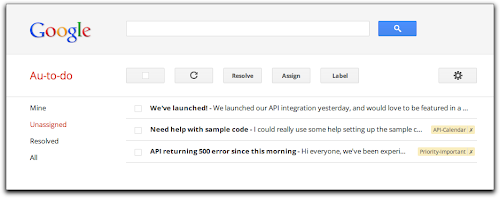
Au-to-do is a sample implementation of a ticket tracker, built using a combination of Google App Engine, Google Cloud Storage, and Google Prediction APIs.
In addition to providing a demonstration of the power of building on Google App Engine, Au-to-do also provides an example of improving the user experience by integrating with Google Apps. Users of Au-to-do can automatically have tasks created using the Google Tasks API whenever they are assigned a ticket. These tasks have a deep link back to the ticket in Au-to-do. This helps users maintain a single todo list, using a tool that’s already part of the Google Apps workflow.
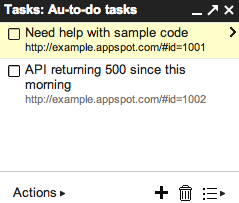
We’re going to continue work on Au-to-do, and provide additional integrations with Google Apps (and other Google APIs) in the following months.
To learn more, read the full announcement or jump right to the getting started guide.
 | Dan Holevoet profile Dan joined the Google Developer Relations team in 2007. When not playing Starcraft, he works on Google Apps, with a focus on the Calendar and Contacts APIs. Hes previously worked on iGoogle, OpenSocial, Gmail contextual gadgets, and the Google Apps Marketplace. |
Wednesday, March 11, 2015
Your apps Google Apps awesome
We are starting to roll out some significant changes that will make it easier for developers to build, deploy, and market applications for domain installation. This is a major improvement to our existing Google Apps Marketplace experience that we originally launched in 2010. You can get started right away by following our documentation here.
Some of the major enhancements in the new Google Apps Marketplace:
Improved security — Domain admins can install and authorize your applications for specific organizational units rather than the whole domain.
Consistent development experience — Use OAuth 2.0 for authorization and manage Google APIs in the Google Developer console.
Test before publishing — Test your app easily using the “Test Install” button in the Google Developers console vs. having to publish a live app.
Simplified publishing experience — Publish to the Chrome Web Store to use a single app listing for apps that work with both Google Drive and Google Apps for Business.
Deeper integration — Integrate with services like Google Drive and Google+ and into Google’s new app launcher.
Easier discoverability — Domain admins can discover your great apps directly from the Admin console.
We love our developers who are building third-party solutions for Google users. Please provide feedback on how we can improve the experience and help you connect with over 5 million companies that use Google Apps to improve how they get work done. Here are some great apps to get you inspired - Promevo gPanel, Draw.io, UberConference, AODocs, Spanning Calendar Undelete, Flashpanel, and MindMeister. Get started with your Google Apps integration today!
 | Arun Nagarajan profile Arun is a Developer Advocate on Google Apps. Arun works closely with the community of partners, customers and developers to help them build compelling applications on top of Google Apps. Arun is originally from the Boston area and enjoys basketball and snowboarding. |
Exporting native Google documents with the Google Drive SDK
Three months ago, we launched Google Drive along with the Google Drive SDK. The SDK allows applications to manage files that users have uploaded to Drive and to integrate deeply in the Google Drive UI. Today, we’ve just extended the SDK to allow developers to interact with native Google Docs types such as Google Spreadsheets, Presentations, Documents, and Drawings.
We now provide an easy way to export native Google documents through the Google Drive API. We also allow native Google documents to be opened directly from within the Google Drive UI using third-party applications.
If your application is already a Drive-installable app, you can enable this feature by checking the Allow users to open files that can be converted to a format that this app can open option in the Google APIs Console under Drive SDK > Import:

When this feature is enabled, your application will show up under the “Open with” menu in the Google Drive Web UI for the file formats you support. Here’s how it works: if your application supports opening one of the possible export formats for the Google document, users will be able to open that Google document with your application. So for instance, if your application is configured to open PDF files, then because Google Documents are exportable to PDF, users will be able to use your application to open those documents as shown below.
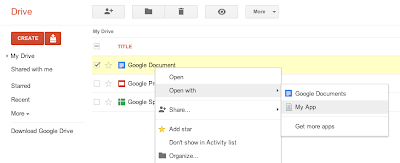
When opening a native Google Document with your application from the Google Drive UI, we will pass the following JSON Object in the state URL parameter of the OAuth 2.0 redirect request that is forwarding the user to your website.
{
  "exportIds": ["file_id"],
  "action":"open"
}
Then you can use the file ID contained in the JSON object to query the Google Drive API and fetch the file’s metadata. Note that the state URL parameter is different when opening regular files as we use the JSON attribute exportIds instead of ids.
Unlike the metadata of regular files which contain a downloadUrl attribute which you can use to download the file’s content, the metadata for native Google documents contains a collection of export URLs. These URLs - one for each supported export format - are listed under the attribute exportLinks, as shown in the HTTP request/response below.
Request:
GET /drive/v2/files/<file_id> HTTP/1.1
Host: www.googleapis.com
Authorization: Bearer <access_token>
Response:
HTTP/1.1 200 OK
Status: 200
...

{
 "kind": "drive#file",
 "id": "<file_id>",
 ...
 "exportLinks": {
  "application/vnd.oasis.opendocument.text": "https://docs.google.com/...",
  "application/msword": "https://docs.google.com/...",
  "text/html": "https://docs.google.com/...",
  "application/rtf": "https://docs.google.com/...",
  "text/plain": "https://docs.google.com/...",
  "application/pdf": "https://docs.google.com/..."
 },
 ...
}
You can query any of these export URLs using an authorized request to download the Google document in your prefered export format.
Below is the full list of supported export formats -- and their associated MIME types -- for the different types of native Google documents:
Google Documents:
- Text File (TXT) - text/plain
- Portable Document Format (PDF) - application/pdf
- OpenDocument Text Document (ODT) - application/vnd.oasis.opendocument.text
- Microsoft Word (DOC) - application/msword
- Hypertext Markup Language (HTML) - text/html
- Rich Text Format File (RTF) - application/rtf
Google Spreadsheets:
- Portable Document Format (PDF) - application/pdf
- Microsoft Excel Spreadsheet (XLS) - application/vnd.ms-excel
- OpenDocument Spreadsheet (ODS) - application/x-vnd.oasis.opendocument.spreadsheet
Google Presentations:
- Text File (TXT) - text/plain
- Portable Document Format (PDF) - application/pdf
- Microsoft Office Open XML Format Presentation (PPTX) - application/vnd.openxmlformats-officedocument.presentationml.presentation
Google Drawings:
- Scalable Vector Graphics (SVG) - image/svg+xml
- JPEG Images (JPEG) - image/jpeg
- Portable Network Graphics (PNG) - image/png
- Portable Document Format (PDF) - application/pdf
Please check out the Google Drive SDK documentation if you’d like to learn more, and feel free to ask any questions you may have on Stack Overflow.
 | Nicolas Garnier profile | twitter | events Nicolas Garnier joined Google’s Developer Relations in 2008 and lives in Zurich. He is a Developer Advocate focusing on Google Apps and Web APIs. Before joining Google, Nicolas worked at Airbus and at the French Space Agency where he built web applications for scientific researchers. |
Concurrency and Google Apps Script
Here’s the scenario: you create a form, you have a script that triggers onFormSubmit and all is well... until it gets popular. Occasionally you start having interlacing modifications from separate invocations of your script to the spreadsheet. Clearly, this kind of interlacing is not what you intended for the script to do. Up until now, there was no good solution to this problem -- except to remain unpopular or just be lucky. Neither are great solutions.
Now, my friend, you are in luck! We’ve just launched the LockService to deal with exactly this problem. The LockService allows you to have only one invocation of the script or portions thereof run at a time. Others that would’ve run at the same time can now be made to wait nicely in line for their turn. Just like the line at the checkout counter.
The LockService can provide two different kinds of locks-- one that locks for any invocation of your script, called a public lock, and another that locks only invocations by the same user on your script, called a private lock. If you’re not sure, using a public lock is the safest bet.
For example, in the scenario in the previous paragraph you would want something like this:
function onFormSubmit() {
  // we want a public lock, one that locks for all invocations
  var lock = LockService.getPublicLock();
  lock.waitLock(30000);  // wait 30 seconds before conceding defeat.
  // got the lock, you may now proceed
  ...whatever it used to do here....
  lock.releaseLock();
}
It’s best to release the lock at the end, but if you don’t, any locks you hold will be released at the end of script execution. How long should you wait? It depends on two things mainly: how long the thing you’re going to do while holding the lock takes, and how many concurrent executions you expect. Multiply those two and you’ll get your timeout. A number like 30 seconds should handle a good number of cases. Another way to pick the number is frankly to take an educated guess and if you guess too short, the script will occasionally fail.
If you want to avoid total failure if you can’t get the lock, you also have the option trying to get the lock and doing something else in the event of not being able to get it:
function someFunction() {
  var lock = LockService.getPublicLock();
  if (lock.tryLock(30000))  {
    // I got the lock!  Wo000t!!!11 Do whatever I was going to do!
  } else {
    // I couldn’t get the lock, now for plan B :(
    GmailApp.sendEmail(“admin@example.com”, “epic fail”,
        “lock acquisition fail!”);
  }
}
So now your scripts can be as popular as they can get with no worries about messing up shared resources due to concurrent edits! Check out the LockService documentation for more information.
 | Drew Csillag Drew is a Software Engineer and Manager at Google on the Google Apps Script project, based in New York. He previously worked on Billing at Google, and for the 13 years before, he has worked on everything from hardware up to GUI frontends and everything in between. |
Enabling Single Sign on with OpenID for the Google Apps Marketplace
We chose to power our Single Sign On (SSO) using OpenID because it’s the predominant open standard for federated identity on the web. The protocol is supported by a large number of OpenID identity providers and many sites around the web accept it. And to make Single Sign On easy to access, Marketplace apps also plug in to both the universal navigation bar inside Gmail, Calendar, Docs, and Sites, as well as the administrative control panel.

<Extension id="navLink" type="link">
  <Name>Amazing Cloud App</Name>
  <Url>http://www.example.com/home.php?domain=${DOMAIN_NAME}</Url>
</Extension>

<Extension id="realm" type="openIdRealm">
  <Url>http://www.example.com</Url>
</Extension>
With this XML in the application manifest, a link called “Amazing Cloud App” will appear in the universal navigation of all Google Apps. Also, if one of the realms specified in the manifest file precisely matches the openid.realm in the OpenID request, then the user will be seamlessly signed into the app after clicking on the link in the universal navigation (without seeing a typical OpenID interstitial allow/deny page).
Of course, you’ll also need code in your application which accepts OpenID logins. In addition to open source libraries, here are a few companies that are making it easier for cloud applications to integrate with the Google Apps Marketplace. Their code provides simple APIs with which developers can integrate, leaving some of the complexities of the OpenID protocol to be implemented by the experts -- no need to hand-roll your own OpenID code.
- JanRain
JanRain’s open source PHP and Ruby OpenID libraries and on-demand RPX solution enabled the implemention of OpenID for many of the companies that launched on the Google Apps Marketplace by writing simple code or web service calls. - Ping Identity
Ping’s PingFederate is an on-premise service that allows SaaS applications to easily accept OpenID and SAML-based logins by integrating with their libraries or using their web server or application server plug-ins. - TriCipher
TriCipher’s myOneLogin Identity Services is an on-demand application that allows developers to accept OpenID, SAML and other federation protocols by writing simple web service calls.
Their are plenty of open source OpenID libraries available for other platforms, such as OpenID4Java (using Step2 code for Google Apps) and DotNetOpenAuth. More information on implementing Single Sign On in Google Apps Marketplace apps can be found on code.google.com.
If you need additional information on building apps for the Google Apps Marketplace, see the Developer’s Overivew on code.google.com.
Admin SDK and Google APIs for business
Today, were announcing the Admin SDK, which enables developers to build customized administrative tools for organizations that use Google Apps. The new Admin SDK consolidates many of the existing domain APIs into a new uniform structure and introduces new functionality with the Directory API and Reports API. We’re starting to pilot Google+ Domains API.
Directory API
The new Directory API provides a simple, RESTful interface to support all basic operations required to query & manage users, groups, organizational units, Chromebooks and mobile devices.Reports API
The new Reports API gives developers a consolidated view of reporting and auditing for domains. Developers can build applications that can monitor and search across usage statistics and activities within a domain.Google+ Domains API
Businesses are using Google+ to help employees collaborate more easily and get things done. Developers will soon be able to auto-provision Circles, read/write posts, and more from the new APIs. Let us know if youre interested in learning more about this API when its available.To begin using the Admin SDK follow the instructions in the API documentation. You will need to sign in to the Google APIs Console and activate the Admin SDK. If you have any questions, join the conversation at Stack Overflow.
Note about API deprecation:
With the introduction of the Directory and Reporting APIs in the new Admin SDK the following APIs will be deprecated per their standard deprecation policy: Google Apps Profiles, Provisioning, Admin Audit, Reporting, Reporting Visualization.
 | Ajay Guwalani Ajay Guwalani is Product Manager on Google Apps Admin APIs. His current focus is to build next generation admin APIs to make enterprise developers and admins happy. |
Get coding fast with Code School and the Google Drive API
Code School has been doing exciting things with learning to program online. This is why we decided to team up with them to create a way for developers to learn to use the Google Drive API, with no setup required. In the Discover Drive course, you can learn at your own pace from your web browser. You’ll spend less time fussing with coding environments and more time writing code.
To find out what the course is all about, go check it out at Code School. Happy coding!
Cross-posted on the Google Developers Blog.
 | Greg Knoke Google+ Greg Knoke is a technical writer in the Google Drive Developer Relations Team. Prior to joining Google, he worked as a scientist developing image and signal processing algorithms. His current interests include new technologies, content management, information architecture, cooking, music, and photography. |
More administrative APIs now available to all Google Apps editions
Google Apps domain administrators have access to a number of APIs to automate their management activities or to integrate with third-party applications, including the Provisioning API to manage user accounts and groups, the Admin Audit API, Admin Settings API, and the Reporting API.
These APIs were only available in Google Apps for Business, Education and ISP editions but many administrators of the free version of Google Apps also requested access to them. I’m glad to say that we listened to your feedback and, starting today, we made the these APIs available to all Google Apps editions.
Please check the documentation as the starting point to explore the possibilities of the APIs and post on our forum if you have questions or comments.
 | Claudio Cherubino profile | twitter | blog Claudio is a Developer Programs Engineer working on Google Apps APIs and the Google Apps Marketplace. Prior to Google, he worked as software developer, technology evangelist, community manager, consultant, technical translator and has contributed to many open-source projects, including MySQL, PHP, Wordpress, Songbird and Project Voldemort. |
Contact Sharing using Google Apps Script
You just created your own contact group in Google Apps Contact Manager and now you want to share this contact group with a few other coworkers (not the entire company). Over the last couple of years, our team at Dito often got this request from our customers. We decided to leverage Google Spreadsheets & Google Apps Script to allow sharing of user’s “personal contact group” with only a select group of coworkers.
How does it work?
The Apps Script implements a three step wizard. Upon completion of the wizard, the script sends the sharing recipients a link to open the spreadsheet to import the user’s recently shared contact group. The three steps in the wizard are.- Step 1 lists all the current contact groups in user’s account. The user can select the group he/she wants to share.
- Step 2 allows user to select the colleagues with whom the user wants to share his/her personal contact group with.
- Step 3 lets the user submit the sharing request.

Designing using Apps Script Services
Apps Script has various services which can be used to build the user interface, access the user’s contact list and send emails without the need to compile and deploy any code.1. Security (guide)
Before a script can modify a user’s contacts, it needs to be authorized by that user. The authorization process takes place when a user executes the script for the first time. When a user makes a request to share his/her contacts, our script sends a link to the intended recipients by email. Upon clicking this link and the “Run Shared Contact Groups” button in the spreadsheet, the recipient will first need to grant authorization to execute the script. By clicking the “Run Shared Contacts Groups” button again, the script will proceed with creating the shared contact group.2. Spreadsheet Service
In developing this script, there was a fair amount of data that needed to be exchanged between different users. We used Apps Script’s Spreadsheet Service for temporarily storing this data.var group = ContactsApp.getContactGroup("Sales Department");
// from that group, get all of the contacts
var contacts = group.getContacts();
// get the sheet that we want to write to
var ss = SpreadsheetApp.getActiveSpreadsheet();
var sheet = ss.getSheetByName("Contact Data");
// iterate through contacts
for (var i in contacts) {
//save each of the values into their own columns
sheet.getRange(i, 1, 1, 1).setValue(contacts[i].getGivenName());
sheet.getRange(i, 2, 1, 1).setValue(contacts[i].getFamilyName());
...
sheet.getRange(i, 13, 1, 1).setValue(contacts[i].getWorkFax());
sheet.getRange(i, 14, 1, 1).setValue(contacts[i].getPager());
sheet.getRange(i, 15, 1, 1).setValue(contacts[i].getNotes());
}
3. Ui Service
Ui Services in Google Apps Scripts have an underlying Google Web Toolkit implementation. Using Ui Services in Apps Script, we easily built the user interface consisting of a 3 step wizard. In designing Ui using Ui Services, we used two main types of Ui elements - Layout Panels and Ui widgets. The layout panels, like FlowPanel, DockPanel, VerticalPanel, etc., allow you to organize the Ui widgets. The Ui widgets (TextBoxes, RadioButtons, etc.) are added to layout panels. Ui Services make it very easy to assemble and display a Ui interface very quickly.
We built each of the components on their own, and then nested them by using the “add” method on the desired container. The UI widgets in the screenshot above were constructed by the code below:
var app = UiApp.createApplication().setWidth(600).setTitle(Share The Group);
// create all of the structural containers
var tabPanel = app.createTabPanel();
var overviewContent = app.createFlowPanel();
var step1Content = app.createFlowPanel();
var step2Content = app.createFlowPanel();
var step3Content = app.createFlowPanel();
// create u/i widgets
var selectLabel = app.createLabel("Select one of your Contact Groups you want to share with others.");
var contactGroupDropdown = app.createListBox().setName(groupChooser);
// add all children to their parents
overviewContent.add(selectLabel);
overviewContent.add(contactGroupDropdown);
tabPanel.add(overviewContent,"Overview");
tabPanel.add(step1Content,"Step 1");
tabPanel.add(step2Content,"Step 2");
tabPanel.add(step3Content,"Step 3");
app.add(tabPanel);
// tell the spreadsheet to display the app weve created.
SpreadsheetApp.getActiveSpreadsheet().show(app);
Continuing with this pattern, we created a pretty complex design using the UI Services. The next step in building a useful user interface is actually building in event handlers for the UI Widgets. Event Handlers let Apps Script know which function you want to run when your script needs to respond to a given user interaction. The code below is an example of a DropDownHandler that we used in our script in Step 1 of the wizard.
// callback element is passed in with the event.
function changeEventForDrowdown(el) {
Browser.msgBox("The dropdown has changed!");
}
// create event handler object, indicating the name of the function to run
var dropdownHandler = app.createServerChangeHandler(changeEventForDrowdown);
// set the callback element for the handler object.
dropdownHandler.addCallbackElement(tabPanel);
// add the handler to the "on change" event of the dropdown box
contactGroupDropdown.addChangeHandler(dropdownHandler);
4. Contacts Service
When a user of the script chooses to share a specific group, the script saves that group contact data into a spreadsheet. When a sharing recipient clicks on the run button to accept the contacts share request, the script fetches the contact group data from the spreadsheet and uses the Contacts Service to create contacts for the share recipients.for (var i = 0; i < sheet.getLastRow(); i++) {
var firstName = sheet.getRange(i, 1, 1, 1).getValue();
var lastName = sheet.getRange(i, 2, 1, 1).getValue();
var email = sheet.getRange(i, 3, 1, 1).getValue();
var myContact = ContactsApp.createContact(firstName, lastName, email);
// ...
// set other contact details
// ...
myContact.addToGroup(group);
}
As this application shows, Apps Script is very powerful. Apps Script has the ability to create applications which allow you to integrate various Google and non-Google services while building complex user interfaces.
You can find Dito’s Personal Contact Group Sharing Script here. Click here to view the video demonstration of this application. You can also find Dito Directory on the Google Apps Marketplace.
Want to weigh in on this topic? Discuss on Buzz
Building an Enterprise File Server on Google Drive
Google Drive is increasingly popular in the enterprise, and many organizations would like to leverage it as a replacement for their existing on-premises file servers. Moving physical file servers to Drive provides many benefits, such as reliability, cost-effectiveness and the ability to access the files from anywhere and any device. However, the storage structure of Google Drive, where files are owned by many different users, is significantly different from the centralized organization of a file server, where everything is under the control of a small number of system administrators.
To address this problem, AODocs uses the Google Drive API to automatically transfer the ownership of files to a system account, and thus create a sort of “managed area” within Google Drive. With the Google Drive API, AODocs has complete control over the folder structure and the permissions of files owned by this system account. AODocs can be deployed in one click from the Google Apps Marketplace, which makes our application visible (and easy to try out!) for every Google Apps administrator in the world.

Companies who want to store their files on Google Drive may be concerned about losing control of their data (e.g. access to files being lost when an employee leaves the company) and controlling sharing permissions.
AODocs uses a single system account (i.e. a Google Apps account belonging to the customer’s domain, but not used by any human person) as a “proxy” to control the files. When a Google Drive files is added to an AODocs library, the ownership of the file is transferred to the AODocs system account and the file’s writersCanShare attribute is set to false, so that only AODocs is able to modify the file’s permissions afterwards.
To change the ownership of the file, we check if the system account can already access the file, and then either insert a new “owner” permission on it or use the Permissions.update method with the transferOwnership flag:
public void changeOwner(String user, String fileId, String newOwner) {
   // Find what is the current permission of the new owner on the file
   Permission newOwnerPermission = null;
   PermissionList permissionList = RetriableTask.execute(new DrivePermissionListTask(drive.permissions().list(fileId)));
   newOwnerPermission = findPermission(permissionList, newOwner);

   if (newOwnerPermission == null) {
      // New owner is not in the list, we need to insert it
      newOwnerPermission = new Permission();
      newOwnerPermission.setValue(newOwner);
      newOwnerPermission.setType("user");
      newOwnerPermission.setRole("owner");
      Drive.Permissions.Insert insert = drive.permissions().insert(fileId, newOwnerPermission);
      RetriableTask.execute(new DrivePermissionInsertTask(insert));
   } else {
      // New owner is already in the list, update the existing permission
      newOwnerPermission.setRole("owner");
      Drive.Permissions.Update update = drive.permissions().update(fileId, newOwnerPermission.getId(), newOwnerPermission);
      update.setTransferOwnership(true);
      RetriableTask.execute(new DrivePermissionUpdateTask(update));
   }
}
Since all the files are owned by the system account, AODocs completely controls the lifecycle of the file (how they are created, in which folder they are located, who can change their permissions, who can delete them, etc). AODocs can thus provide higher-level document management features on top of Google Drive, such as configuring the retention time of deleted files, limiting external sharing to a whitelist of “trusted external domains”, or recording an audit log of file modifications.
As illustrated in the code snippet above, AODocs relies on the Google Drive API to perform all the operations on the managed files. The main challenge we had when using the Drive API was to properly handle all the error codes returned by the API calls, and make sure we make the difference between fatal errors that should not be tried again (for example, permission denied on a file) and the temporary errors that should be re-tried later (for example, “rate limit exceeded”). To handle that, we have encapsulated all our Google Drive API calls (we are using the Java client library) into a class named RetriableTask, which is responsible for handling the non-fatal errors and automatically retry the API calls with the proper exponential back-off. Here is a simplified version:
public class RetriableTaskimplements Callable {
[...]
private final Callabletask;
[...]
@Override public T call() {
T result = null;
try {
startTime = System.currentTimeMillis();
result = task.call();
} catch (NonFatalErrorException e) {
if (numberOfTriesLeft > 0) {
// Wait some time, using exponential back-off in case of multiple attempts
Thread.sleep(getWaitTime());
// Try again
result = call();
} else {
// Too many failed attempts: now this is a fatal error
throw new RetryException();
}
} catch (FatalErrorException e) {
// This one should not be retried
Throwables.propagate(e);
}
return result;
}
AODocs is designed to work seamlessly with Google Drive, and our top priority is to leverage all the integration possibilities offered by the Google APIs. We are very excited to see that new features are added very often in the Admin SDK, the Google+ API, the Drive API that will allow AODocs to provide more options to system administrators and improve the experience for our end users.
 | Thomas Gerber profile Thomas is the CTO of Altirnao. Before founding Altirnao, Thomas has led a team of senior technologists and architects on High Availability/High Performance implementations of enterprise software. |