Wednesday, March 11, 2015
Managing groups using the new Groups Settings API
The recently launched Groups Settings API allows Google Apps domain administrators to write client applications for managing groups in their domain. Once you have created the groups and added members using the Provisioning API, you can use the Groups Settings API to perform actions like:
- manage access to the group
- configure discussion archiving
- configure message moderation
- edit a groups description, display format and custom fields
Let’s have a look at how you can make authorized calls to the Groups Settings API from your client application.
Getting Started
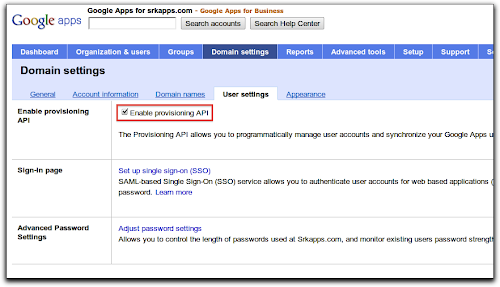
You must enable the Provisioning API to make requests to the Groups Settings API. You can do so by enabling the Provisioning API checkbox in the Domain settings tab of your Google Apps control panel.
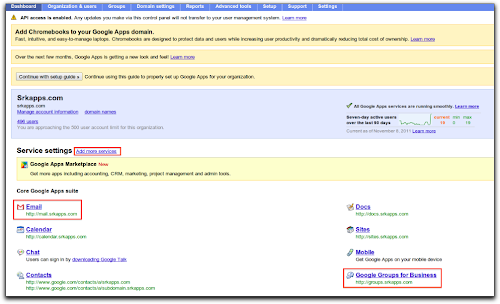
Next, ensure that the Google Groups for Business and Email services are added to your domain by going to the Dashboard. If these services are not listed, add them by going to Add more services link next to the Service settings heading.
Now you are set to write client applications. Lets discuss the steps to write an application using the Python client library. You need to install the google-api-python-client library first.
You can register a new project or use an existing one from the APIs console to obtain credentials to use in your application. The credentials (client_id, client_secret) are used to obtain OAuth tokens for authorization of the API requests.
Authorization using OAuth 2.0
The Groups Settings API supports various authorization mechanisms, including OAuth 2.0. Please see the wiki for more information on using the library’s support for OAuth 2.0 to create a httplib2.Http object. This object is used by the Groups Settings service to make authorized requests.
Make API requests with GroupSettings service
The Python client library uses the Discovery API to build the Groups Settings service from discovery. The method build is defined in the library and can be imported to build the service. The service can then access resources (‘groups’ in this case) and perform actions on them using methods defined in the discovery metadata.
The following example shows how to retrieve the properties for the group staff@example.com.
service = build(“groups”, “v1”, http=http)
group = service.groups()
g = group.get(groupUniqueId=”staff@example.com”).execute()
This method returns a dictionary of property pairs (name/value):
group_name = g[name]
group_isArchived = g[isArchived]
group_whoCanViewGroup = g[whoCanViewGroup]
The update method can be used to set the properties of a group. Let’s have a look at how you can set the access permissions for a group:
body = {whoCanInvite: ALL_MANAGERS_CAN_INVITE,
        whoCanJoin: ‘INVITED_CAN_JOIN’,
        whoCanPostMessage: ‘ALL_MEMBERS_CAN_POST’,
        whoCanViewGroup: ‘ALL_IN_DOMAIN_CAN_VIEW’
       }

 # Update the properties of group
 g1 = group.update(groupUniqueId=groupId, body=body).execute()
Additional valid values for these properties, as well as the complete list of properties, are documented in the reference guide. We have recently added a sample in the Python client library that you can refer to when developing your own application. We would be glad to hear your feedback or any queries you have on the forum.
 | Shraddha Gupta profile Shraddha is a Developer Programs Engineer for Google Apps. She has her MTech in Computer Science and Engineering from IIT Delhi, India. |

Building an Enterprise File Server on Google Drive
Google Drive is increasingly popular in the enterprise, and many organizations would like to leverage it as a replacement for their existing on-premises file servers. Moving physical file servers to Drive provides many benefits, such as reliability, cost-effectiveness and the ability to access the files from anywhere and any device. However, the storage structure of Google Drive, where files are owned by many different users, is significantly different from the centralized organization of a file server, where everything is under the control of a small number of system administrators.
To address this problem, AODocs uses the Google Drive API to automatically transfer the ownership of files to a system account, and thus create a sort of “managed area” within Google Drive. With the Google Drive API, AODocs has complete control over the folder structure and the permissions of files owned by this system account. AODocs can be deployed in one click from the Google Apps Marketplace, which makes our application visible (and easy to try out!) for every Google Apps administrator in the world.

Companies who want to store their files on Google Drive may be concerned about losing control of their data (e.g. access to files being lost when an employee leaves the company) and controlling sharing permissions.
AODocs uses a single system account (i.e. a Google Apps account belonging to the customer’s domain, but not used by any human person) as a “proxy” to control the files. When a Google Drive files is added to an AODocs library, the ownership of the file is transferred to the AODocs system account and the file’s writersCanShare attribute is set to false, so that only AODocs is able to modify the file’s permissions afterwards.
To change the ownership of the file, we check if the system account can already access the file, and then either insert a new “owner” permission on it or use the Permissions.update method with the transferOwnership flag:
public void changeOwner(String user, String fileId, String newOwner) {
   // Find what is the current permission of the new owner on the file
   Permission newOwnerPermission = null;
   PermissionList permissionList = RetriableTask.execute(new DrivePermissionListTask(drive.permissions().list(fileId)));
   newOwnerPermission = findPermission(permissionList, newOwner);

   if (newOwnerPermission == null) {
      // New owner is not in the list, we need to insert it
      newOwnerPermission = new Permission();
      newOwnerPermission.setValue(newOwner);
      newOwnerPermission.setType("user");
      newOwnerPermission.setRole("owner");
      Drive.Permissions.Insert insert = drive.permissions().insert(fileId, newOwnerPermission);
      RetriableTask.execute(new DrivePermissionInsertTask(insert));
   } else {
      // New owner is already in the list, update the existing permission
      newOwnerPermission.setRole("owner");
      Drive.Permissions.Update update = drive.permissions().update(fileId, newOwnerPermission.getId(), newOwnerPermission);
      update.setTransferOwnership(true);
      RetriableTask.execute(new DrivePermissionUpdateTask(update));
   }
}
Since all the files are owned by the system account, AODocs completely controls the lifecycle of the file (how they are created, in which folder they are located, who can change their permissions, who can delete them, etc). AODocs can thus provide higher-level document management features on top of Google Drive, such as configuring the retention time of deleted files, limiting external sharing to a whitelist of “trusted external domains”, or recording an audit log of file modifications.
As illustrated in the code snippet above, AODocs relies on the Google Drive API to perform all the operations on the managed files. The main challenge we had when using the Drive API was to properly handle all the error codes returned by the API calls, and make sure we make the difference between fatal errors that should not be tried again (for example, permission denied on a file) and the temporary errors that should be re-tried later (for example, “rate limit exceeded”). To handle that, we have encapsulated all our Google Drive API calls (we are using the Java client library) into a class named RetriableTask, which is responsible for handling the non-fatal errors and automatically retry the API calls with the proper exponential back-off. Here is a simplified version:
public class RetriableTaskimplements Callable {
[...]
private final Callabletask;
[...]
@Override public T call() {
T result = null;
try {
startTime = System.currentTimeMillis();
result = task.call();
} catch (NonFatalErrorException e) {
if (numberOfTriesLeft > 0) {
// Wait some time, using exponential back-off in case of multiple attempts
Thread.sleep(getWaitTime());
// Try again
result = call();
} else {
// Too many failed attempts: now this is a fatal error
throw new RetryException();
}
} catch (FatalErrorException e) {
// This one should not be retried
Throwables.propagate(e);
}
return result;
}
AODocs is designed to work seamlessly with Google Drive, and our top priority is to leverage all the integration possibilities offered by the Google APIs. We are very excited to see that new features are added very often in the Admin SDK, the Google+ API, the Drive API that will allow AODocs to provide more options to system administrators and improve the experience for our end users.
 | Thomas Gerber profile Thomas is the CTO of Altirnao. Before founding Altirnao, Thomas has led a team of senior technologists and architects on High Availability/High Performance implementations of enterprise software. |
Apps Script Rewind
Sometimes you just want to sit uninterrupted at your keyboard, bashing out a clever Apps Script to automate your life and your work … but sometimes you want to see how Google experts approach the tough problems. Sometimes you want to draw on other Apps Scripters for inspiration or help.
That’s why the Apps Script team — and many other developer-focused teams at Google — record Google Developers Live episodes in which we highlight a specific topic and drill down to discuss it in detail.
We also hold regular livestreamed office hours via Google+ Hangouts, which we post on YouTube afterwards. In these office hours, we discuss recent releases and give in-depth tutorials on topics interesting to Apps Script users.
Now that the 2013’s GDLs and office hours are underway, let’s recap six topics we discussed in GDL segments over the last few months.
Apps Script services
Triggers are an incredibly powerful part of Apps Script that allow developers to run code non-interactively. In this video, I talk about ways to schedule code via the GUI as well as programmatically, and briefly touch on intermediate topics such as common patterns and pitfalls when working with triggers.
Charts are a great way to visualize data. In this next video, Kalyan Reddy starts with a few slides about Apps Script’s Charts Service, then works his way into code samples for an application that pulls data from the StackOverflow API in order to create an online dashboard that displays contributions from top developers. If you want to follow along, Kalyan’s code samples are available on Github.
Working with other Google APIs
BigQuery is a Google service that allows developers to analyze massive datasets very quickly in the cloud. In this video, Michael Manoochehri from the BigQuery team joins us to talk about how to use Apps Script to automatically export aggregate BigQuery data into Google Sheets to make it easier to share. This show dovetails nicely with Kalyan’s video about charts (above), in which you’ll learn how to quickly wire up visualizations for the exported data.
And what developer doesn’t love Google Analytics? Although Analytics has built-in mechanisms to export data from the UI, it also provides an API for automated data retrieval. Nick Mihailovski from the Google Analytics team joins us to talk about the reasons why people might want to do this, and to demonstrate a toolkit that makes it easy to work with Google Analytics data within Google Sheets.
Third-party APIs
Many Google Apps users are also Salesforce users. In this show, Arun Nagarajan explains how to integrate Google Apps with Salesforce via Apps Script, and shows off a few code samples that demonstrate moving data between Salesforce and Google Apps in either direction. Make sure to grab a copy of Arun’s code samples on Github.
Need to build a robodialer or otherwise automate voice calls? Twilio provides an API for doing just that. Arun and Eric Koleda take us through some of the cool possibilities for integrating Twilio’s API with Google Apps. We had a lot of fun setting up the studio for this one, and it’s one of the most fun to watch. Here’s the code on Github.
Of course, if you want to hear our tricks and tips as soon as possible, you’ll should watch Google Developers Live, well, live — so check out the calendar of upcoming episodes for Apps Script and Drive. If you have any ideas for further segments you’d like to see, leave a suggestion in the comments below! We’d love to hear your feedback.
Cheers!
 | Ikai Lan profile Ikai is a Developer Programs Engineer working on Google Apps Script but transitioning to the YouTube team. Ikai is an avid technologist, consuming volumes of material about new programming languages, frameworks or services, though more often than not youll find him advocating pragmatism over dogma in the solutions he proposes. In his free time, he enjoys the great outdoors, winning Chinese language karaoke contests and playing flag football. He resides in New York City, where he watches in anguish as his favorite sports teams from the San Francisco Bay Area implode season after season. |
Tuesday, March 10, 2015
How to make files searchable in Google Drive
When a file of a common type is uploaded to Google Drive, it is automatically indexed so users can easily search for it in their Drive files. Google Drive also tries to recognize objects and landmarks in images uploaded to Drive.
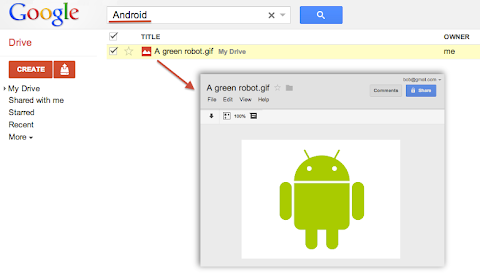
For instance, if a user uploaded a list of customers as an HTML, XML, PDF or text file he could easily find it later by searching for one of its customer’s name that is written inside the file. Users could also upload a picture of their favorite green robot, then search for “Android” and Google Drive would find it in their Drive:
Metadata such as the file’s title and description are always indexed so users can always find a file by name. However, Google Drive does not automatically index the content of less common or custom file types. For example if your application uploads or creates files using the custom MIME-type custom/mime.type, then Drive would not try to read and index the content of these files and your users would not be able to find them by searching for something that’s inside these files.
To have Google Drive index the content of such files you have to use one of the following two options available when uploading files through the Google Drive API.
useContentAsIndexableText URL parameter
We recently added a way for you to indicate that the file you are uploading is using a readable text format. In the case where your file data format is text based — for instance if you are using XML or JSON — you can simply set the useContentAsIndexableText URL parameter to true when uploading the file’s content to Drive. When this flag is set Google Drive will try to read the content of the file as text and index it.
indexableText attribute
There is a more flexible approach which is to set the indexableText attribute on the File Metadata. You can set the value of the indexableText attribute which is a hidden — write-only — attribute that we will index for search. This is very useful if you are using a shortcut file — in which case there is no content uploaded to Google Drive — or if you are using a non-text or binary file format which Google Drive won’t be able to read.
Have a look at our Google Drive API references or watch our latest Google Developer Live video about the topic to learn more.
 | Nicolas Garnier Google+ | Twitter Nicolas Garnier joined Google’s Developer Relations in 2008 and lives in Zurich. He is a Developer Advocate for Google Drive and Google Apps. Nicolas is also the lead engineer for the OAuth 2.0 Playground. |
Update on Marketplace Billing API
For the next version, we’re working on making the billing features both easier to integrate with and easier for customers to use. Additional changes will enable us to innovate faster with expanded country support, payment options, and other exciting features due later on. Version 2 of the licensing API will continue to be supported throughout these changes.
Developers using the preview implementation can continue to do so until the new version is available and customers are transitioned. Those just getting started with the Marketplace are encouraged to use their own payment solution until the new version is available.
Please let us know if you have any questions by posting in the Google Apps Marketplace API forum.
Reading Query Results from Calendar in Pages
What’s the difference between reality and theory? In theory, there is no difference. But reality often imposes unanticipated constraints on developers. These may come in the form of bandwidth restrictions, memory limits, timeouts, or other requirements of the systems that interact with your application.
My team recently built an application that helps us analyze the scheduling and usage of conference rooms at Google. We use the new Calendar API v3 on Google App Engine to read the rooms’ schedules, which we combine with actual occupancy data to calculate utilization and other metrics.
As you might imagine, Google has a lot of conference rooms (I believe the last official count was “more than twelve.”) And many of the rooms seem to be booked fairly solid. That means we need to read a lot of data from Calendar. So much, in fact, that our queries time out if we try to read an entire calendar at once. But the API team anticipated “Google scale” use and designed a mechanism that allows us to retrieve data in batches.
The idea is simple. When you create a request, you specify the page size: the maximum number of results you’d like Calendar to return in one batch. Calendar returns the data you requested, along with an opaque page token, which you can think of as a bookmark. To retrieve the next batch of data, you ask the API for the next page token and include the new token in your next request. The page token keeps track of the results you’ve already seen, so Calendar can send the next batch each time. You repeat this process until you’ve exhausted all the results.
Here’s how we did this in Java:
public void getRoomEvents(String roomEmail) throws IOException {
// Create a request to list this room’s events (see code, below)
Calendar.Events.List listRequest = getListRequest(roomEmail);
do {
// Retrieve one page of events
Events events = executeListRequest(listRequest);
ListeventList = events.getItems();
// Process each event
for (Event event : eventList) {
processEvent(event);
}
// Update the page token
listRequest.setPageToken(events.getNextPageToken());
// Stop when all results have been retrieved
} while (listRequest.getPageToken() != null);
}
// Create a request to list the events for a room
private Calendar.Events.List getListRequest(String roomEmail)
throws IOException {
return calendarClient.events().list(roomEmail)
.setMaxResults(1000) // Limit each response to 1000 events
.setPageToken(null) // Start with the first page of results
// Return an individual event for each instance occurrence of a
// recurring event
.setSingleEvents(true);
}
We call getRoomEvents() for each room, using the room’s email address to identify it to Calendar. (You can retrieve events from your own calendar by substituting your own email address.) Then getListRequest() creates a request that we will send to Calendar. The request asks for a list of up to 1000 events from the room’s calendar.
The remainder of getRoomEvents() is a loop that executes the request, processes the results, and updates the page token in preparation for the next request. The loop continues, retrieving and processing each subsequent page of results, until the entire list has been returned. The call to getNextPageToken() indicates the end of the results by returning a null value.
By paginating our requests we avoid timeouts and reduce memory requirements. As an added benefit, each request completes fairly quickly, which means it’s also quick to retry if an error should occur. And finally, a multithreaded application may be able to process one or more pages of results while it retrieves the next, speeding execution. These advantages have led developers at Google to adopt pagination as a best practice. Look for it in our APIs when you need to exchange large amounts of data, and consider adding it to your own services.
If you have questions about our services or APIs, or if you want to see what other developers are doing with Google Calendar, check the discussions and documentation in the Google Apps Calendar API forum.
 | Adam Liss profile Adam is an engineer who believes that "technical" shouldnt necessarily mean "difficult." He enjoys building infrastructure and tools that make Googlers more productive. Before joining Google in 2010, he built network-security appliances and one of the first wireless application delivery platforms. |
Email Overload!
Editor’s Note: This blog post is authored by Blair Kutzman, who developed the Gmail Delay Send script. - Eric Koleda
Update: To start using this script simply open this page and follow the instructions.
In today’s connected world, when you get your email could be just as important what’s in it. In 2011 over 107 trillion emails were sent to 1.97 billion internet users. Studies have shown that the average person can only effectively process 50 emails in a day. That leaves 100 emails per person per day that are not processed effectively. How can you be sure that the emails you send fall into the former category and not the latter?
Luckily, there are tools to assist with email overload. One such tool is Gmail Delay Send.
What is Gmail Delay Send?
Gmail Delay Send is a Google Apps Script that allows you to schedule emails to be delivered on a specified date and time. Using this tool you can ensure your email is sent to its destination at a time when you can capture your recipient’s full attention. For example, receiving an email at 4:59 PM on friday might not receive the same attention as an email received on Monday at 10:00 AM.
Designing Gmail Delay Send
A primary requirement of Gmail Delay Send was that it needed to work everywhere Gmail is available. There are already many browser add-ons and services available to enhance Gmail with similar functionality, so the purpose was not to duplicate that work. In order for the service to be available on all platforms, it needed to utilize native Gmail features.
We needed a native way that Gmail could:
- Store a composed, but unsent message.
- Store in that composed message two pieces of metadata:
- Whether or not the message meant to be sent at a later time
- If it is, when the message should be sent
Gmail already contains a Draft folder which is exactly what is required for item 1. The real problem was where and how to store the metadata for item 2, without any new Gmail functions. I chose to encode the metadata in the subject of the message because it would contain less text, which would mean a smaller chance of mis-parsing. Text such as “5 hours” and “next tuesday” were turned into a date-time using an open source library called datejs and a few modifications. See below for details of how this potentially cumbersome process was improved.
Basic structure
The script works as follows:
- The user composes an email, noting the date-time they want the message to be sent in their subject line after a delimiter (eg. "Lets go surfing -- 3:30PM")
- The email is then saved as a draft and optionally a label is applied marking it as a message that we want to send at a later time.
- When the script executes, all draft messages are checked (optionally looking at messages that have a specific label applied) to see if they should be sent now.
Usability improvements
Although using datejs to parse the dates from the subject line was easy to implement, it introduced some usability issues. First, how would a user know if a certain string can be parsed by datejs (eg. is “5 minutes before 4PM” parsable)? To assist the user in knowing which dates datejs supports, the script offers a mechanism to test a given string directly in the spreadsheet that Gmail Delay Send is installed inside of. In this way a user can test various strings to see if they are valid and, if so, when they would be sent. A wiki page is dedicated to helping people through this process.
Another possibly confusing part of using Gmail Delay Send was setting up triggers. Thanks to some recent improvements of the Script Services, this is now done automatically for users as they install.
Improving script reliability
Adding retry logic to the script was another important step in improving its reliability and user experience. Occasionally, users were getting emails from their trigger informing them that a certain Google Script API could not be contacted. Some retry logic was required to make things work correctly. As shown in the snippet below, the function executeCommand() takes any function and will try to execute it a specified number of times, retrying if an error is thrown:
function executeCommand(fp) {
  var msg;
  var ret_val;
  var last_error;

  for(var retries = NUM_RETRIES; retries > 0; retries -= 1) {
    try {
      ret_val = fp();
      break;
    }
    catch(err) {
      last_error = err;
      msg = "Exception:" + err + " thrown executing function:" + fp;
      debug_logs.push(msg);
      Logger.log(msg);
      Utilities.sleep(SLEEP_TIME);
    }
  }

  if(retries == 0) {
    msg = "Attempted to execute command:" + fp + " " + NUM_RETRIES +
          " times without success. Error message: " + last_error +
          ". Aborting  :-(";
    Logger.log(msg);
    throw(msg);
  }

  return ret_val;
}
Using this method, statements like those below will automatically retry if the service is not available.
executeCommand( function() { GmailApp.send( … ) });
executeCommand( function() { UrlFetchApp.urlFetch(url) } );
Summary
Gmail Delay Send was a fantastic project for learning about Google Apps Script and I hope that it will continue to prove useful to its users. If you’re interested in using Gmail Delay Send or just interested in the development process please check out the homepage or source.
 | Blair Kutzman profile Blair currently works on scan firmware at Hewlett Packard. When not scanning he likes to hang out with family, run and surf. Check out his profile for other projects. |