Showing posts with label part. Show all posts
Showing posts with label part. Show all posts
Friday, February 27, 2015
Part 1 Would Nemo Survive Using the Blue Ocean Strategy
 "Blue Ocean Strategy is a bestseller across five continents. It has been published in over 40 languages and sold over 2 million copies (since 2005). " - Source
 BLUE OCEAN STRATEGY?
"Blue Ocean Strategy is a business strategy book first published in 2005 and written by W. Chan Kim and Renée Mauborgne of The Blue Ocean Strategy Institute at INSEAD, one of the top European business schools. The book illustrates the high growth and profits an organization can generate by creating new demand in an uncontested market space, or a "Blue Ocean", than by competing head-to-head with other suppliers for known customers in an existing industry." - Source
"Based on a study of 150 strategic moves spanning more than 100 years (1880 - 2000) and 30 industries, it provides us with a systematic approach to making the competition irrelevant and creating uncontested market space. " - Source
So, what is Blue Ocean Strategy exactly?
"It is the simultaneous pursuit of differentiation and low-cost to create new market space. Blue Ocean Strategy seeks to make the competition irrelevant by creating a leap in value for both the company and its buyers. Blue Ocean Strategy aligns the following three propositions:
Click here to read more and learn about BOS for free.
If the BOS theory still does not make sense, this should nail it:
...And what is the likelihood of that?
TWO PART SERIES
In this two part series I will explore Blue Ocean Strategy (BOS), and reflect back on a 2-day BOS workshop I attended a few weeks back (1st - 2nd December) at the UCSI Blue Ocean Strategy Regional Centre. In Part 1, I will zoom in on BOS as a theory and share some insights that might have been overlooked by the authors. In part 2, I will focus on Blue Ocean as a systematic approach to gain insight, innovate and create value, and explore some of the useful tools that we can use to visualize our own Blue Ocean, whatever that might be.
Having read the book twice (first time in 2007), read dozens of related articles, and participated in a 2-day BOS workshop, I believe I am entitled to share my honest opinions regarding this approach next. Though, I might be wrong!
RED OCEAN VS BLUE OCEAN STRATEGY

While I kind of like the Blue Ocean idea (Exotically relaxing and hypnotizing!) and most of the BOS visualization tools (explored in Part 2), I kind of find the Read Ocean and Blue Ocean Strategy mambo jumbo (graphic above) and several of the case studies used in the book both misleading and a whole lot of _____ (you guess?)!
The BOS theory has already been around for a few years, and it is NOT short of criticism either, so I am not going to go on a full-blown (reinventing the wheel) shark attack. However, being fair to BOS, it has also rebutted six misconceptions about BOS (PDF) reasonable convincingly.
CIRQUE DU SOLEIL"Based on a study of 150 strategic moves spanning more than 100 years (1880 - 2000) and 30 industries, it provides us with a systematic approach to making the competition irrelevant and creating uncontested market space. " - Source
So, what is Blue Ocean Strategy exactly?
"It is the simultaneous pursuit of differentiation and low-cost to create new market space. Blue Ocean Strategy seeks to make the competition irrelevant by creating a leap in value for both the company and its buyers. Blue Ocean Strategy aligns the following three propositions:
- Value proposition
The utility buyers receive from the product or service minus the price they pay for it. - Profit proposition
The price of the offering minus the cost of producing and distributing it. - People proposition
The readiness of employees to execute the new strategy with all of their energy, to the best of their abilities, and voluntarily.
Click here to read more and learn about BOS for free.
If the BOS theory still does not make sense, this should nail it:
"Go where profits and growth are – and where the competition isn’t."
- Kim & Mauborgne (PDF)
- Kim & Mauborgne (PDF)
...And what is the likelihood of that?
TWO PART SERIES
In this two part series I will explore Blue Ocean Strategy (BOS), and reflect back on a 2-day BOS workshop I attended a few weeks back (1st - 2nd December) at the UCSI Blue Ocean Strategy Regional Centre. In Part 1, I will zoom in on BOS as a theory and share some insights that might have been overlooked by the authors. In part 2, I will focus on Blue Ocean as a systematic approach to gain insight, innovate and create value, and explore some of the useful tools that we can use to visualize our own Blue Ocean, whatever that might be.
Having read the book twice (first time in 2007), read dozens of related articles, and participated in a 2-day BOS workshop, I believe I am entitled to share my honest opinions regarding this approach next. Though, I might be wrong!
RED OCEAN VS BLUE OCEAN STRATEGY
While I kind of like the Blue Ocean idea (Exotically relaxing and hypnotizing!) and most of the BOS visualization tools (explored in Part 2), I kind of find the Read Ocean and Blue Ocean Strategy mambo jumbo (graphic above) and several of the case studies used in the book both misleading and a whole lot of _____ (you guess?)!
The BOS theory has already been around for a few years, and it is NOT short of criticism either, so I am not going to go on a full-blown (reinventing the wheel) shark attack. However, being fair to BOS, it has also rebutted six misconceptions about BOS (PDF) reasonable convincingly.
 "Dramatic mix of circus arts and street entertainment." - Source
If you read the Blue Ocean Strategy (BOS) book, or listen to any consultant promoting BOS, they will for sure share with you the ultimate BOS example and pride Cirque du Soleil. No doubt the Cirque du Soleil (founder Guy Laliberté) is an inspiring, innovative and breathtaking story, but is it really a Blue Ocean?
First, Guy Laliberté never used BOS as a tool to innovate and create value. So, although it might be a Blue Ocean, it does not prove that the BOS as a theory is practical and implementable. Secondly, BOS like so many other theories often hijack success stories from a few angles (and hide others), and then absorb them into a portfolio of evidence of whatever they are trying to convince or sell.
Lets look a bit closer at the amazing Cirque du Soleil story, and explore whether it is really a Blue Ocean according to the Red Ocean vs Blue Ocean framework:
- Break the Value-cost Trade-off?
The authors would like you to believe that Cirque du Soleil grew out of the traditional circus act and then reinvented it by eliminating performing animals and star performers (cut cost), and shifted the buyer group from children (end-users of the traditional circus) to adults (purchasers of the traditional circus), drawing upon the distinctive strengths of other alternative industries, such as the theatre, Broadway shows and the opera, to offer a totally new set of utilities to more mature and higher spending customers (Source).
In reality, Guy Laliberté (folk musician, busker and fire breather) never really worked with performing animals or so called star performers, and we could actually argue instead that he reinvented street entertainment by transforming a group of street performers into a "proper circus" (learning the circus act from Guy Caron). He didnt pick up the idea of telling a story from the theatre, but from the Moscow Circus method. His vision was to create a circus with neither a ring nor animals. The rationale was that the lack of both of these things draws the audience more into the performance (Source).
Ironically, the book never mentions this, and the main reason is probably that these revelations would confuse their value-cost trade-off idea. Yes, Cirque du Soleil enhanced the show value and entertainment as they innovated over the years, but it also made the Cirque du Soleil much more costly than most other street entertainment shows (which are often free, but you are encouraged to donate/give a token of appreciation), and that had nearly catastrophic consequences during the first few years. Did you know that Guy Laliberté or his company went nearly bankrupt several times during the first few years, and if it was not for government grants, his never-say-die attitude, connections, and bit of fortune (luck!) this amazing story would have ended in disaster, and this again was never mentioned in the BOS book. The BOS book gives us an impression as if it was a smooth ride to heaven, and that the BOS was the secret to its success. What baloney! - Create Uncontested Market Space?
Seriously, what does this really mean? How do you create an uncontested market space for adult entertainment? Give us a break! Cirque du Soleil explored, innovated, and has developed (after several financial failures) over the years several amazing and unique shows that consists of a theatrical mix of circus arts and street entertainment. You could have 10 other groups use similar Blue Ocean Strategies and they would have failed, unless they had people like Guy Laliberté to make it happen.
The idea of creating an uncontested market space is an illusion, unless we simply define it as an uncontested market space, which is easy as the authors have provided no real measure (like so much else!) to prove this. That probably did not make much sense either, but then again the idea of creating an uncontested market space (perhaps on Mars!) in the 21st century, unless for an extremely short period, is highly unlikely. But, we should never stop dreaming. Anything is possible! - Make the Competition Irrelevant?
Very few companies and products throughout history have made competition irrelevant (e.g. Microsoft Office could be an example, but that cost millions, if not billions of dollars in research and development), and if they have made competition irrelevant, it has only been for short periods. But then again, can competition ever be irrelevant? Even the iPhone (Vs Blackberry Vs Android) has relevant competition, although it has been a tremendous success.
If there is no competition in sight, perhaps the market is not worth embracing anyway. In short, I would argue that there is no harm with contested competition. For example, the iPhone entered a read ocean competitive smart-phone market (which had bad products!), but through its exceptional user experience and iTunes Eco-system it has managed to capture a healthy market share. As for the Cirque du Soleil story, they are not the first acrobatic story show to pop-up. The Chinese dragon show has been around for centuries. Also, Cirque du Soleil will always have relevant competition from other amazing traveling shows and acts (and other forms of adult entertainment!), but as long as their shows are unique, attractive and entertaining, they will amplify their reputation and attract an increasing global demand. - Create and Capture New Demand?
Perhaps on Mars or Pluto (the Moon is more likely)! There is and has always been a demand for new forms of adult entertainment (or ways of being entertained), and Cirque du Soleil has been successful in capturing this universal demand with their amazing shows (not necessarily because of their strategy!). - Align the whole system of a firms activities in pursuit of differentiation and low cost?
Low cost for whom? The firm? The customer? Both? This idea has confused me until today. When I first read the book, I got the impression that Blue Ocean was about enhancing the customer value and at the same time lowering the product/service cost. But after attending the workshop, and scrutinizing some of the case studies, I get the impression that the lowering cost aspect, refers mostly to the firm, and not necessarily to the customer.
If we go back to the Cirque du Soleil case, we see a pursuit of differentiation and lower implementation cost if we compare to the traditional circus act. But, that is rather misleading, because we could have and perhaps should have compared it to street performances, which it really originated from. And if we did, it would be differentiation, but at a higher cost. Moreover, had Cirque du Soleil used performing animals and star performers, it would have certainly gone bankrupt, because it nearly went bankrupt without them several times. Though, kudos to Cirque du Soleil for hiring over the years many amazing street performers, and providing them a healthy and stable living income beyond what they would have probably got from performing on the streets.
WHAT IS YOUR POINT?
Having said all this, we could go BLUE arguing whether Cirque du Soleil is really a Blue Ocean or not. No point wasting any more time on this issue, though please challenge me on all accounts (can always update my post).
Having always been attracted to business improvement books, or books that explore creativity and business value innovations (attracted to the stories rather than the formulas!), I see a common trend and pattern in many of the books I have read, which is the manipulation of past and existing success stories to prove their ideas and frameworks for ultimate success. In other words, they will look through their narrow lenses and highlight what fits their theory, and then hide does aspects that do not fit.
The secret to sustained success lies in the marketing strategy (BOS misses this point)! No, it lies in strong ethical practices (BOS misses this point)! No, the secret to success is strategic execution (RIP)! No, it lies in the strategy itself. BOS claims based on its research that the strategic move, and not the company or the industry, is the right unit of analysis for explaining the creation of blue oceans and sustained high performance...bla, bla (p. 10). They are all right in their own lenses.
Though, I would argue that all of the above mentioned ideas, do not really highlight the real essence of companies that have had sustained success over time, which is exceptional leaders working with amazingly talented people. What would Apple today be without Steve Jobs, or Air Asia without Tony Fernandes?
Exceptional leaders have the ability to visualize (ideas), inspire, empower, and attract talented people to work for them, and as importantly they have the ability to continuously attract the world attention needed (or hire people that can!) to make it a sustained success. So, if you want a real strategy that really works, hire exceptional leaders and talented people with the right attitude (to your needs). Even if you dont have a great strategy, these people will most likely do a better job on strategy development than any consultant, or consultancy firm out there.
You are wrong! Maybe, I am!
PART 2?
Although, I find all the exotic buzz words (that can easily be manipulated) and the Red/Blue ocean framework from BOS a load of ____ (the real Blue Ocean!), they do have some interesting tools we can use to acquire useful insights and help us create value innovations. Your results using these tools might not turn out to be real Blue Oceans according to their immeasurable and exotic framework, but nevertheless the tools are worth a try.
So, what about the Nemo puzzle? That will be explored in part 2 (if I can cook up an answer!), and I will also reveal the ultimate secret to success, which is...
Part 2 - Simplify Blue Ocean & Make Consultants __________!
Part 3 - ZaidLearns Blue Ocean Strategy for 2011

Wednesday, February 25, 2015
10 Secrets to Great Teaching Part 2
- 10 Secrets to Great Teaching (Part 1)
- Google Video version (Part 2)
- Presentation Slides (SlideShare)

PART 2
In part 2, I explore the remaining six (6) secrets (of the 10 discussed) to teaching, or ingredients to become a great teacher. The 10 keywords associated with the 10 secrets are highlighted in the graphic above. I will let the narrated presentation (below) do all the talking for now. Perhaps I will write a paper about the 10 secrets to great teaching in month or two, after more discussions and reflections with great people like you. In the meantime, have fun watching me babble and mumble about great teaching (Not sure about that!):
Hopefully, more people will join this discussion and scrutinize their own teaching to become better teachers. Teaching is a life time journey, but it would be nice to discover a bit of wisdom as early as possible. I suppose if we put our reflective minds together, we can do great things about our own teaching, and help for example others to facilitate more efficient and effective AHA moments (Synthesize and simplify content or learning so that students understand).
If you are looking for the slidecast version (2 parts-in-one) and presentation slides, you can find it right here:
SELF-EVALUATION
Overall, I am reasonable comfortable with writing and mashing-up slides, but I probably need a few more narrated videos under my belt, before I can feel good about my own voice. Though, hopefully the next learning videos I develop are shorter learning nuggets, which are less than 5 minutes a piece.
Oops, I forgot to mention the importance of having fun and a sense of humor while inspiring your students to learn. Yes, it is going to be a long learning process, and I AM STILL LEARNING :)
I tried to upload the video to TeacherTube, but without success until now (size issue?).
Anyway, as long as we have Google Video, why worry!
Anyway, as long as we have Google Video, why worry!
Hopefully, more people will join this discussion and scrutinize their own teaching to become better teachers. Teaching is a life time journey, but it would be nice to discover a bit of wisdom as early as possible. I suppose if we put our reflective minds together, we can do great things about our own teaching, and help for example others to facilitate more efficient and effective AHA moments (Synthesize and simplify content or learning so that students understand).
If you are looking for the slidecast version (2 parts-in-one) and presentation slides, you can find it right here:
view presentation (tags: learning teaching education creativity)
SELF-EVALUATION
In part 2, I actually wrote a script before recording (for testing purposes). For learning purposes, I found that writing a script got me to focus and think clearer about what I wanted to say. Writing a script is like rehearsing your presentation again and again. However, I am not sure if my arguments are more solid this time around. Anyway, I am not exactly defending a scientific paper, but instead I am having a conversation about great teaching with myself (You got to start somewhere!).
Did this narrated presentation take longer time to develop? Yes, a bit only! Actually, if you are producing a long video or cant type fast, I would recommend that you record on-the-fly without a script. However, if you have sufficient time allocated to create a script, it is actually not a bad idea. Perhaps a compromise would do, meaning you dont necessarily create a full-script, but a sufficient one to assist you to say what you want to say, the way you want it to be said. As for recording the audio, I used Audacity, which is simply a sensational free audio recording tool.
Overall, I am reasonable comfortable with writing and mashing-up slides, but I probably need a few more narrated videos under my belt, before I can feel good about my own voice. Though, hopefully the next learning videos I develop are shorter learning nuggets, which are less than 5 minutes a piece.
Oops, I forgot to mention the importance of having fun and a sense of humor while inspiring your students to learn. Yes, it is going to be a long learning process, and I AM STILL LEARNING :)
Wednesday, February 18, 2015
C if Statement Part 2
In the last tutorial we have learnt about the basic use of decision control instruction using if statement. Today we will extend that tutorial with some advanced examples.
So the general form of if statement is
if(expression)
{
Statement 1
Statement 2
. . . . .
. . . . .
}
if(3+2)
printf("This will print everytime");
if(6/2+4)
printf("This will print everytime");
if(0)
printf("This will never execute");
During the running of decision control instruction, a compiler checks the expression either it evaluates 0 or not. If the result is 0 then it will never execute the body of if statement. But if the expression evaluate to any non-zero number then it will execute the body of if statement.
In the first two examples, expression under if evaluates a non-zero value. So it will print the message.
In the last example, I have written 0. So the printf() statement is not executed.
Note: Usage of expression is very important in C language. While writing big programs it is used very frequently. So I recommend you to understand the basic logic behind it correctly. If you have any problems then you can also post your queries in comments.
Now lets take one slightly complicated program to understand all the basics associated with if statement.
Output
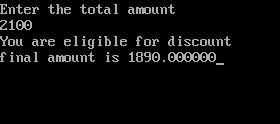
Now let’s try to understand this program
1. I hope you must understand the basic initial steps of this program. I will give the explanation for only if statement.
2. In if statement I have given the condition of (amnt>2000), it means it will check the amount if it is greater than 2000. Say, if it is greater than the amount then it will execute the statements in the body of if. Otherwise it will skip it.
3. In our test run we have given the value 2100, as it is greater than 2000. So the control passes inside the if statement body and do following things.
- First it will display the message "You are eligible for discount"
- In the next step it will calculate the discount i.e. 10% of the total amount.
- In the final step it will deduct the discount from the final amount.
4. Now in the last step it will display the final amount.
A bit more about conditions
As I told you earlier that if statement is used with some conditions. Truly speaking it can also be used with some expression.So the general form of if statement is
if(expression)
{
Statement 1
Statement 2
. . . . .
. . . . .
}
What is expression?
This expression can be any valid expression including relational and arithmetic expression. Some common examples are given below.if(3+2)
printf("This will print everytime");
if(6/2+4)
printf("This will print everytime");
if(0)
printf("This will never execute");
Conclusion
Truly speaking in C language any non-zero number is considered to be TRUE whereas zero is considered as FALSE.During the running of decision control instruction, a compiler checks the expression either it evaluates 0 or not. If the result is 0 then it will never execute the body of if statement. But if the expression evaluate to any non-zero number then it will execute the body of if statement.
In the first two examples, expression under if evaluates a non-zero value. So it will print the message.
In the last example, I have written 0. So the printf() statement is not executed.
Note: Usage of expression is very important in C language. While writing big programs it is used very frequently. So I recommend you to understand the basic logic behind it correctly. If you have any problems then you can also post your queries in comments.
Now lets take one slightly complicated program to understand all the basics associated with if statement.
Sample Program
Make one program which will display the total amount after deducting the discount of 10%, if the total is more than 2000./*Program to show discount*/
#include <stdio.h>
void main()
{
float amnt,famnt,dis;
printf("Enter the total amount
");
scanf("%f",&amnt);
famnt=amnt;
if (amnt>2000)
{
printf("You are eligible for discount
");
dis=0.1*amnt;
famnt=famnt-dis;
}
printf("final amount is %f",famnt);
}
Output
Now let’s try to understand this program
1. I hope you must understand the basic initial steps of this program. I will give the explanation for only if statement.
2. In if statement I have given the condition of (amnt>2000), it means it will check the amount if it is greater than 2000. Say, if it is greater than the amount then it will execute the statements in the body of if. Otherwise it will skip it.
3. In our test run we have given the value 2100, as it is greater than 2000. So the control passes inside the if statement body and do following things.
- First it will display the message "You are eligible for discount"
- In the next step it will calculate the discount i.e. 10% of the total amount.
- In the final step it will deduct the discount from the final amount.
4. Now in the last step it will display the final amount.
Terrain Correction of SAR Images Part 3
The most convenient way to process large quantities of SAR data is using the methods through command line. With the "gpt" command as described in the Nest help pages you can process single scenes from command line, but here is a way to process large quantities of scenes from command line. With the DOS "for" command you recursively search through your directories for scenes to be processed and hand these scenes each to the gpt command.
Here is how to do it:
First you create the processing chain with the graph builder as described in part 2 and save it as an XML file. Especially in the beginning, you may want to keep it to simpler processing chains not containing all tasks at once. In our case, lets take only the SARSIM Terrain Correction:
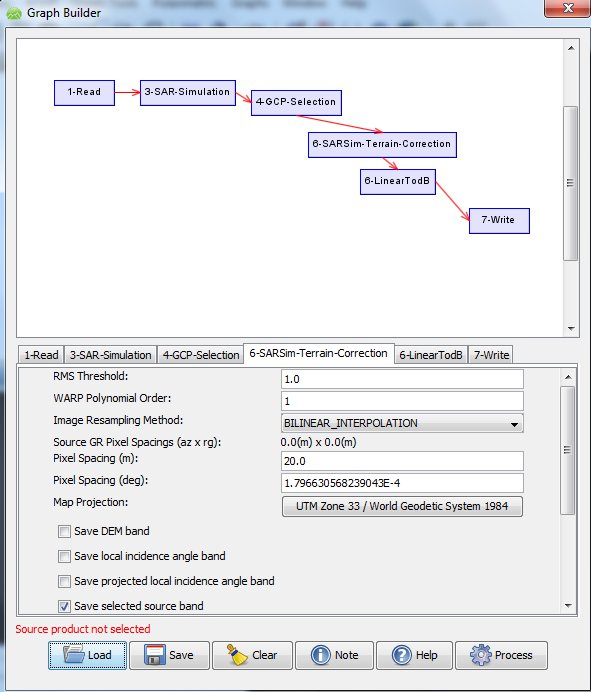
You set the values in Graph Builder and save it, lets say as "SARSIM_TC.xml". You still should check and edit the XML file for the parameters you need (map projection, resolution, etc) and you will have to modify the saved XML file at twoplaces for batch command line use as follows:
Make sure that the filenames in the XML file have $file and $target as placeholders as in the following examples:
for /r C:Usersmaxlocation_of_files %%X in (*.dim) do (gpt C:Usersmaxlocation_of_XMLfile SARSIM_TC.xml -Pfile="%%X" -Tfile=" C:Usersmaxlocation_of_files\%%~nX_SarSimTC.dim")
What happens here?
Read more »
Here is how to do it:
First you create the processing chain with the graph builder as described in part 2 and save it as an XML file. Especially in the beginning, you may want to keep it to simpler processing chains not containing all tasks at once. In our case, lets take only the SARSIM Terrain Correction:
You set the values in Graph Builder and save it, lets say as "SARSIM_TC.xml". You still should check and edit the XML file for the parameters you need (map projection, resolution, etc) and you will have to modify the saved XML file at twoplaces for batch command line use as follows:
Make sure that the filenames in the XML file have $file and $target as placeholders as in the following examples:
<node id="1-Read">and the Write part (sourceProduct refid may vary in your case):
<operator>Read</operator>
<sources/>
<parameters class="com.bc.ceres.binding.dom.Xpp3DomElement">
<file>$file</file>
</parameters>
</node>
<node id="2-Write">Now you create a SARSIM_TC.bat file containing
<operator>Write</operator>
<sources>
<sourceProduct refid="6-SARSim-Terrain-Correction"/>
</sources>
<parameters class="com.bc.ceres.binding.dom.Xpp3DomElement">
<formatName>BEAM-DIMAP</formatName>
<file>$target</file>
</parameters>
</node>
for /r C:Usersmaxlocation_of_files %%X in (*.dim) do (gpt C:Usersmaxlocation_of_XMLfile SARSIM_TC.xml -Pfile="%%X" -Tfile=" C:Usersmaxlocation_of_files\%%~nX_SarSimTC.dim")
What happens here?
- The for-command goes through the directory containing your files to find files named "*.dim" and passes the file name to "%%X".
- For each of these input files "-Pfile="%%X", the NEST command "gpt" applies the Graph Builder production chain saved in "SARSIMTC_dB.xml"
- The output is saved in the parameter -Tfile, which here is written "%%~nX_SarSimTC.dim", taking the filename and between original name and filetype adding "_SarSimTC" to indicate this is having been processed with SarSim. You may choose different naming, but I find this convenient.
You navigate the DOS window (type "cmd" at Windows Start> "search programs and files" to open it) to the directory containing SARSIM_TC.bat, then type "SARSIM_TC.bat" and all scenes in the specified folder will be processed.
The results will be the same as shown in Part 1
Monday, February 16, 2015
Part I data warehousing Star schema from orcle documentation
This post is for collecting data ware housing concepts quick understanding to work with BI tools such as Talend ETL or Pentaho Kettle.
Few of the other basic concepts will be included in Part-II to Part -V
Schema
A schema is a collection of database objects, including tables, views, indexes, and synonyms.
Schema models are used for designing data warehousing.
The Star schema
Advantages of Star Schema:
* Star schemas are denormalized
* That is ,the normal rules of normalization applied to transactional relational databases are relaxed during star schema design and implementation.

References:
http://docs.oracle.com/cd/A87860_01/doc/server.817/a76994/schemas.htm
http://en.wikipedia.org/wiki/Star_schema
Few of the other basic concepts will be included in Part-II to Part -V
Schema
A schema is a collection of database objects, including tables, views, indexes, and synonyms.
Schema models are used for designing data warehousing.
The Star schema
- It is the simplest data warehouse schema.
- Why it is called star schema ?
Bz the diagram of star schema resembles as a star with points radiating from a center. - The center of the star consists of one or more fact tables and the points of the star are the dimension tables.
- A star schema is characterized by one or more very large fact tables that contain the primary information in the data warehouse and a number of much smaller dimension tables (or lookup tables).
- Each dimension tables contains information about the entries for a particular attribute in the fact table.
- A star query is a join between a fact table and a number of lookup tables.
- Each lookup table is joined to the fact table using a primary-key to foreign-key join, but the lookup tables are not joined to each other.
- A star join is a primary-key to foreign-key join of the dimension tables to a fact table.
- The fact table normally has a concatenated index on the key columns to facilitate this type of join.
Advantages of Star Schema:
* Star schemas are denormalized
* That is ,the normal rules of normalization applied to transactional relational databases are relaxed during star schema design and implementation.
- Simpler queries:
- Star schema join logic is generally simpler than the join logic required to retrieve data from a highly normalized transactional schemas.
- Simplified business reporting logic
- when compared to highly normalized schemas, the star schema simplifies common business reporting logic, such as period-over-period and as-of reporting.
- Query performance gains
- star schemas can provide performance enhancements for read-only reporting applications when compared to highly normalized schemas.
- Fast aggregations
- The simpler queries against a star schema can result in improved performance for aggregation operations.
- Feeding cubes
- star schemas are used by all OLAP systems to build proprietary OLAP cubes efficiently.
- most major OLAP systems provide a ROLAP mode of operation which can use a star schema directly as a source without building a proprietary cube structure.
References:
http://docs.oracle.com/cd/A87860_01/doc/server.817/a76994/schemas.htm
http://en.wikipedia.org/wiki/Star_schema
Sunday, February 15, 2015
Functions in C Programming Part 2
Read: Functions in C Programming - Part 1
In my last tutorial I gave an overview to the functions in C programming. Today I will tell you about the multiple calls within one function and its nuances. So without wasting any time lets head over to a program.
Output
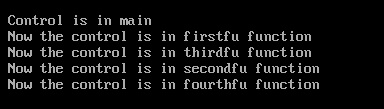
A simple concept to learn
Suppose main() function calls another function msg(). When the control reach to the msg() function then the activity of main() will be suspended temporarily. After executing all the statements from the msg() function, the control will automatically goes to the original calling function (main() in our case).
Explanation
Points to Remember
1. Any C program contains at least one function and it should be main().
void main()
{
msg();
}
5. We can call one function any number of times.
void main()
{
msg();
msg();
}
6. A function can also called by itself. Such an execution is called recursion.
7. We cannot define one function inside another. We can only call one function from another.
In my last tutorial I gave an overview to the functions in C programming. Today I will tell you about the multiple calls within one function and its nuances. So without wasting any time lets head over to a program.
Functions in C Programming
#include<stdio.h>

void firstfu();
void secondfu();
void thirdfu();
void fourthfu();


void main()
{
 printf(" Control is in main
");
 firstfu();
}

void firstfu()
{
 printf(" Now the control is in firstfu function
");
 thirdfu();
}

void secondfu()
{
 printf(" Now the control is in secondfu function
");
 fourthfu();
}

void thirdfu()
{
 printf(" Now the control is in thirdfu function
");
 secondfu();
}

void fourthfu()
{
 printf(" Now the control is in fourthfu function
");
}
Output
Suppose main() function calls another function msg(). When the control reach to the msg() function then the activity of main() will be suspended temporarily. After executing all the statements from the msg() function, the control will automatically goes to the original calling function (main() in our case).
Explanation
- The program starts with main() function and it will print the message inside it. After that I have called the firstfu() function from main(). Remember here main() is calling function and firstfu() is called function.
- Now the control reaches to firstfu() function and the activity of main() function is suspended temporarily. Inside firstfu() function, printf() will print a message. Now I have called thirdfu() function. Remember here firstfu() is calling function and thirdfu() is called function
- Now the control reaches to the thirdfu() function and the activity of firstfu() function is suspended temporarily. And it will execute its printf() function. Now I have called the secondfu() function.
- Same thing will happened to the secondfu() function and it will call the fourthfu() function.
- Now the printf() statement will be executed inside the fourthfu() function. As there is no further call to other function there. So the control will goes back to the calling function. Calling function of fourthfu() is secondfu().
- No more statements is left in secondfu(). So the control will reach to the calling function. thirdfu() is the calling function of secondf().
- Same execution will be done for all of them. And the control will reach to the main() function again. Now no statement is left in main() function, so the program will be terminated.
Points to Remember
1. Any C program contains at least one function and it should be main().
The execution of the program always starts with main() function. We cannot alter it in any case.
2. A typical C program may contain any number of functions. But it should contain one main() function and the program will start executing with main() function.
3. Any function can call any other function. Even main() function can be called from other functions. To call a function we have to write the function name followed by a semi colon.
{
msg();
}
4. We should define a function before calling it. A function can be defined by following below syntax.
5. We can call one function any number of times.
void main()
{
msg();
msg();
}
6. A function can also called by itself. Such an execution is called recursion.
7. We cannot define one function inside another. We can only call one function from another.
Friday, February 13, 2015
Structure in C Part 2
Read: Structure in C - Part 1
In the last tutorial I told you about the basic use of structure in C programming. I gave an overview of declaration and definition of structures. Armed with that basic knowledge, today I will tell you about how to access structure elements. Apart from this I will also tell you about the memory allocation of structure elements and array of structure. So lets get started.
Above code will display the name, roll number and marks of student s1. Consider carefully I have accessed the elements using dot operator.
Making an array of structure is similar to creating a normal array. For this we only need to define a structure. After that we have to make an array of structure. Consider below program to understand it properly.
Output

Explanation
In this example I am storing the records of books in a library system. You can see I have created an array of structure of size 3 and that is storing 3 records from the user and then displaying the same on the screen.
In the last tutorial I told you about the basic use of structure in C programming. I gave an overview of declaration and definition of structures. Armed with that basic knowledge, today I will tell you about how to access structure elements. Apart from this I will also tell you about the memory allocation of structure elements and array of structure. So lets get started.
Structure in C
Accessing Elements of Structure
It is important to define the structure before accessing it. In arrays we use subscript to access the array elements. But this concept is slightly different from them. To access the structure elements we use dot operator or member access operator (.). We have to write the name of structure variable followed by a dot and structure element. One small example is given below.//structure definition
struct student
{
char name[10];
int roll;
int marks;
}s1;
struct student s1={"Rishi",4,56}; //storing values
//accessing structure elements
printf("%s%d%d",s1.name,s1.roll,s1.marks);
Memory Allocation of Structure Elements
Structure elements are stored similar to array elements. It means the structure elements are also stored in contiguous memory locations. As I have said earlier, at the time of structure variable declaration, memory is allotted to it. In our above example 14 bytes (10 for string and 4 for two integers) will be allocated for s1.Array of Structure
Before proceeding to this topic I want to ask you – Is it possible to create array of structure? Well of course Yes. If we can make array of pointers, array of chars and so on then we can also make array of structure.Making an array of structure is similar to creating a normal array. For this we only need to define a structure. After that we have to make an array of structure. Consider below program to understand it properly.
#include<stdio.h>

int main()
{
 struct library
 {
  char lang[10];
  int pages;
  char name[20];
 };

 struct library lib[3];
 int i;

 for(i=0;i<3;i++)
 {
  printf("
Enter language, pages and name
");
  scanf("%s%d%s",&lib[i].lang,&lib[i].pages,&lib[i].name);
 }

 for(i=0;i<3;i++)
  printf ( "
%s	%d	%s
",lib[i].lang,lib[i].pages,lib[i].name);

 return 0;
}
Output
In this example I am storing the records of books in a library system. You can see I have created an array of structure of size 3 and that is storing 3 records from the user and then displaying the same on the screen.
Tuesday, February 10, 2015
Terrain Correction of SAR Images Part 1
A characteristic of side-looking SAR image is the so-called foreshortening and layover, a reflected signal from a mountaintop reaches the sensor earlier or at the same time as the signal at the foot of the mountain. This results in the typical look of mountains that seem to have "fallen over" towards the sensor:


A problem in the current version: If you -- after having processed a particular scene -- choose a different scene under "1-Read" as input having differently named source bands, the source band list under "3-SAR Simulation" does not update -- you have to close the whole window and start all over -- part 2 and following describe how to process a large number of scenes.
The next postings will discuss how to run all this from command line and do batch processing.
Read more »
In the original image to the left, a pixel is basically displaced depending on its elevation above sea-level, so it is important to remove this layover as seen in the image above to the right. The freely available NEST SAR Toolbox is in many ways a great tool for satellite image processing and makes it very easy terrain-correct SAR images in a fully automatic process.
The algorithm takes the DEM and using orbit parameters of the satellite creates a simulated SAR image from this DEM. The simulated and the real SAR image, which will look very similiar, are coregistered. Through this simulation, the displacement for each location in the original landscape, the DEM, is known, so if the simulated SAR image is transformed back into the original DEM -- and the coregistered SAR image along with it -- the pixels of the SAR image will receive their real, geographical location. (Its actually quite easy in principle, but not sure this description is clear...)
Below is the original ESA SAR image as loaded into NEST displaying the typical layover:
Before the terrain correction, I apply the newest orbit file (Utilities>Apply Orbit), calibrate the values (SAR Tools>Radiometric Correction>Calibrate; but not in dB since the terrain correction needs linear values!) and the run a speckle filter, median 3x3 (SAR Tools>Speckle Filtering>Single Image)
Now to the actual terrain correction. Choose Geometry>Terrain Correction>SAR Simulation Terrain Correction. In the first tab 1-Read you choose the product to be corrected:
The second tab defines the output. Unfortunately the default output filename in this case is only "SarSimTC.dim", I follow the NEST naming convention where all methods applied are contained in the filename, such as "ORIGINALNAME_AppOrb_Calib_Spk_SarSimTC.dim" but this has to be typed manually:
In the "3-SAR simulation" tab, one can choose various DEM such as GETASSE and SRTM, but in my case I choose an "External DEM" and specify the file path. I set the "no data value" to 9999.0, otherwise all ocean surface will be NAN. There is something unusual in this tab -- if you do not highlight any of the source bands, the first one only will be processed, in this case "Amplitude_VV". If other bands also should be processed, both source bands (in this case Amplitude_VV and Amplitude_VH) must be highlighted by choosing and clicking them!
The "4-GCP Selection" tab I leave the given values:
Finally, the "5-SARSIM-Terrain-Correction" tab. For my purpose, I choose 20m resolution for the output image, the map projection of Svalbard/Spitsbergen WGS1984 / UTM 33N and prefer nearest neighbour interpolation:
Now I can choose "process" and this particular run takes 6.5 minutes on a Windows 7 64-bit computer for one source band. For two source bands it is much, much longer (80 minutes in this run!) and may not work if the computer has too little RAM, so the best and fast way is to process individual source bands separately. (The Range Doppler algorithm for removing layover which I will discuss in a later is faster but does not work for some scenes at high latitudes(?)).
I choose "Utilities>Dataset Conversion>Linear to dB" to get desibel values and get this final result. The data fits perfectly to cartographic shapefiles of the coastlines and to the other geolocations.

I choose "Utilities>Dataset Conversion>Linear to dB" to get desibel values and get this final result. The data fits perfectly to cartographic shapefiles of the coastlines and to the other geolocations.
compared again to the original SAR image the difference is easily visible!
A problem in the current version: If you -- after having processed a particular scene -- choose a different scene under "1-Read" as input having differently named source bands, the source band list under "3-SAR Simulation" does not update -- you have to close the whole window and start all over -- part 2 and following describe how to process a large number of scenes.
The next postings will discuss how to run all this from command line and do batch processing.
Thursday, February 5, 2015
Creating a Flex AIR text editor Part 46
In this tutorial we continue working on the snippets feature: we will actually add the ability to insert the text into the text area when a snippet is selected, and we will also create a snippet window.
Find the snippetTree object and set its change property to a snippetTreeChange() event and pass the event object as the parameter:
The function checks if the isBranch attribute of the object is false, if it is, then insert the snippet into textArea using insertText() method and deselect the item from the tree by setting the selectedIndex property to -1.
Well also need to edit the onSelected function to set the isBranch attribute of non-category nodes too. Set them to false:
Now we will create a class similar to FontWindow, but call it SnippetWindow instead. Create an instance of this class caleld snippetWindow:
Now we can create a doSnippet() method which will be called to open/reopen the window:
As you can probably notice, the contents are similar to doFonts() function, which does basically the same but with the fontWindow object. We also use its setValues() function to set certain values, but this time we only pass 3 parameters - the XMLList object, a boolean determining if we need to create a new snippet after opening this window and the text for the new snippet. The last two parameters get passed to the doSnippet() function itself, and they are optional.
Now we call this function two times in our code - on the New snippet and on the Manage snippets buttons:
When we just want to open the window, we simply call this function. When we want to create a new snippet and put the text that the user has selected before pressing the button, we pass a true value and a string value of the text selection.
Now lets create the SnippetWindow class. Create a new file called SnippetWindow.mxml.
I am going to copy-paste the contents from FontWindow here and just edit it. I am going to get rid of everything font-related, and just leave the basic stuff. I am going to have the same 4 functions I had - init, onCLose, setValues and doApply. I dont even need to change any of these functions, except for setValues. Then Im going to remove all the contents and replace them with snippet bassed settings.
We nede to edit the setValues() function to handle the parameters and set the text of newNameInput and newTextInput text fields.
Heres how the class looks like in the end:
The window can now be opened, closed, reopened. We can use the New snippet button to open this window with the text piece that weve selected in the text area and have it in the text input of the snippet already.
Thats all for now.
Heres the code for the main file:
Thanks for reading!
Read more »
Find the snippetTree object and set its change property to a snippetTreeChange() event and pass the event object as the parameter:
<mx:Tree height="100%" width="100%" id="snippetTree" showRoot="false" labelField="@label" dataProvider="{snippetXML}" change="snippetTreeChange(event);" />
The function checks if the isBranch attribute of the object is false, if it is, then insert the snippet into textArea using insertText() method and deselect the item from the tree by setting the selectedIndex property to -1.
private function snippetTreeChange(evt:Event):void {
if (evt.currentTarget.selectedItem.@isBranch == false) {
insertText(evt.currentTarget.selectedItem.@snippetText);
evt.currentTarget.selectedIndex = -1;
}
}
Well also need to edit the onSelected function to set the isBranch attribute of non-category nodes too. Set them to false:
private function onSelected(evt:SQLResult):void {
var data:Array = evt.data;

// Temporary:
data = [
{id:0, snippetName:"Snip1", snippetText:"Test1", categoryName:"Cat1" },
{id:1, snippetName:"Snip2", snippetText:"Test2", categoryName:"Cat2" },
{id:2, snippetName:"Snip3", snippetText:"Test3", categoryName:"Cat1" },
{id:3, snippetName:"Snip4", snippetText:"Test4", categoryName:"Cat2" },
{id:4, snippetName:"Snip5", snippetText:"Test5", categoryName:"Cat1" },
{id:5, snippetName:"Snip6", snippetText:"Test6", categoryName:"Cat2" } ]
// end temporary

var categories:Array = [];
snippetXML = new XMLList(<root></root>);

if(data){
for (var i:int = 0; i < data.length; i++) {
// If category is not unique, add the item to the category
if (isUnique(i)) {
// If it is unique, create the category and add the item
var newCategory:XML = <category isBranch="true"/>;
newCategory.@label = data[i].categoryName;

var newUniqueNode:XML = <snippet/>;
newUniqueNode.@label = data[i].snippetName;
newUniqueNode.@snippetText = data[i].snippetText;
newUniqueNode.@id = data[i].id;
newUniqueNode.@isBranch = false;

newCategory.appendChild(newUniqueNode);
snippetXML[0].appendChild(newCategory);
categories.push(data[i].categoryName);
}
}
}

function isUnique(ind:int):Boolean {
var isU:Boolean = true;
for (var u:int = 0; u < categories.length; u++) {
if (data[ind].categoryName == categories[u]) {
isU = false;
var newNode:XML = <snippet/>;
newNode.@label = data[ind].snippetName;
newNode.@snippetText = data[ind].snippetText;
newNode.@id = data[ind].id;
newNode.@isBranch = false;
snippetXML[0].category[u].appendChild(newNode);
break;
}
}
return isU;
}
}
Now we will create a class similar to FontWindow, but call it SnippetWindow instead. Create an instance of this class caleld snippetWindow:
public var snippetWindow:SnippetWindow = new SnippetWindow();
Now we can create a doSnippet() method which will be called to open/reopen the window:
private function doSnippet(createNew:Boolean = false, newText:String = ""):void{
snippetWindow.open();
snippetWindow.activate();
snippetWindow.visible = true;
snippetWindow.setValues(snippetXML, createNew, newText);
}
As you can probably notice, the contents are similar to doFonts() function, which does basically the same but with the fontWindow object. We also use its setValues() function to set certain values, but this time we only pass 3 parameters - the XMLList object, a boolean determining if we need to create a new snippet after opening this window and the text for the new snippet. The last two parameters get passed to the doSnippet() function itself, and they are optional.
Now we call this function two times in our code - on the New snippet and on the Manage snippets buttons:
<s:Button width="100%" label="New snippet" click="doSnippet(true, textArea.text.substring(textArea.selectionActivePosition, textArea.selectionAnchorPosition));" />
<s:Button width="100%" label="Manage snippets" click="doSnippet();" />
When we just want to open the window, we simply call this function. When we want to create a new snippet and put the text that the user has selected before pressing the button, we pass a true value and a string value of the text selection.
Now lets create the SnippetWindow class. Create a new file called SnippetWindow.mxml.
I am going to copy-paste the contents from FontWindow here and just edit it. I am going to get rid of everything font-related, and just leave the basic stuff. I am going to have the same 4 functions I had - init, onCLose, setValues and doApply. I dont even need to change any of these functions, except for setValues. Then Im going to remove all the contents and replace them with snippet bassed settings.
We nede to edit the setValues() function to handle the parameters and set the text of newNameInput and newTextInput text fields.
Heres how the class looks like in the end:
<?xml version="1.0" encoding="utf-8"?>
<mx:Window xmlns:fx="http://ns.adobe.com/mxml/2009"
xmlns:s="library://ns.adobe.com/flex/spark"
xmlns:mx="library://ns.adobe.com/flex/mx"
title="Snippet management" type="utility" width="500" height="700"
creationComplete="init();" showStatusBar="false" alwaysInFront="true" resizable="false">

<fx:Script>
<![CDATA[
import flash.events.Event;

[Bindable]
private var treeData:XMLList;

private function init():void{
this.addEventListener(Event.CLOSING, onClose);
}

private function onClose(evt:Event):void {
this.visible = false;
evt.preventDefault();
}

public function setValues(xmlData:XMLList, createNewOnStart:Boolean = false, newText:String = ""):void {
treeData = xmlData;
newTextInput.text = newText;
newNameInput.text = "New snippet name here";
if (newText=="") {
newTextInput.text = "New snippet text here";
}
}

private function doApply():void{
dispatchEvent( new Event( Event.CHANGE ) );
this.visible = false;
}
]]>
</fx:Script>

<s:VGroup paddingLeft="5" paddingRight="5" paddingTop="5" paddingBottom="5">
<s:Label text="Snippet creation and management: " />
<s:TextInput id="newNameInput" text="New snippet name" width="490" />
<s:TextArea id="newTextInput" width="490" height="200" text="Snippet text" />
<s:HGroup>
<s:Button label="Add snippet" />
<s:Button label="Save changes" />
<s:Button label="Delete snippet" />
</s:HGroup>

<s:Label text="" />

<s:Label text="Category creation and management: " />
<s:TextInput id="newCategoryInput" text="New category name" width="490" />
<s:HGroup>
<s:Button label="Add category" />
<s:Button label="Save changes" />
<s:Button label="Delete category with its contents" />
</s:HGroup>

<s:Label text="" />

<mx:Tree id="snippetManageTree" dataProvider="{treeData}" width="490" height="300" showRoot="false" labelField="@label"/>
</s:VGroup>

</mx:Window>
The window can now be opened, closed, reopened. We can use the New snippet button to open this window with the text piece that weve selected in the text area and have it in the text input of the snippet already.
Thats all for now.
Heres the code for the main file:
<?xml version="1.0" encoding="utf-8"?>
<s:WindowedApplication xmlns:fx="http://ns.adobe.com/mxml/2009"
                       xmlns:s="library://ns.adobe.com/flex/spark"
                       xmlns:mx="library://ns.adobe.com/flex/mx"
   xmlns:custom="*"
   creationComplete="init();" title="Kirpad" showStatusBar="{pref_status}"
   minWidth="400" minHeight="200" height="700" width="900">

<s:menu>
<mx:FlexNativeMenu dataProvider="{windowMenu}" showRoot="false" labelField="@label" keyEquivalentField="@key" itemClick="menuSelect(event);" />
</s:menu>

<fx:Script>
<![CDATA[
import flash.data.SQLConnection;
import flash.events.KeyboardEvent;
import flash.events.Event;
import flash.events.MouseEvent;
import flash.events.NativeWindowBoundsEvent;
import flash.filesystem.File;
import flash.filesystem.FileStream;
import flash.net.SharedObject;
import flashx.textLayout.accessibility.TextAccImpl;
import flashx.textLayout.edit.EditManager;
import flashx.textLayout.edit.TextScrap;
import mx.collections.ArrayCollection;
import mx.controls.Alert;
import mx.controls.TextArea;
import mx.events.FlexNativeMenuEvent;
import flashx.textLayout.elements.TextFlow;
import flashx.textLayout.elements.Configuration;
import flash.system.System;
import flash.desktop.Clipboard;
import flash.desktop.ClipboardFormats;
import flash.ui.Mouse;
import mx.events.CloseEvent;
import flash.ui.ContextMenu;
import flash.ui.ContextMenuItem;
import flash.events.ContextMenuEvent;
import mx.events.ResizeEvent;
import mx.core.FlexGlobals;
import mx.printing.FlexPrintJob;
import mx.printing.FlexPrintJobScaleType;
import flashx.undo.UndoManager;
import flashx.textLayout.operations.UndoOperation;
import flash.data.SQLConnection;
import flash.events.SQLEvent;
import flash.data.SQLStatement;
import flash.data.SQLResult;
import flash.data.SQLMode;
import flash.net.Responder;
import XML;
import XMLList;

private var preferences:SharedObject = SharedObject.getLocal("kirpadPreferences");
[Bindable]
private var pref_wrap:Boolean = true;
[Bindable]
private var pref_status:Boolean = true;
[Bindable]
private var pref_toolbar:Boolean = true;
[Bindable]
private var pref_sidepane:Boolean = true;
[Bindable]
private var pref_linecount:Boolean = true;
[Bindable]
public var pref_fontsettings:Object = new Object();

private var initHeight:Number;
private var heightFixed:Boolean = false;

private var statusMessage:String;
[Bindable]
private var textHeight:Number;
[Bindable]
private var textWidth:Number;
[Bindable]
private var textY:Number;
[Bindable]
private var textX:Number;
[Bindable]
private var tabY:Number;
[Bindable]
private var sidePaneY:Number;
[Bindable]
private var sidePaneX:Number;
[Bindable]
private var sidePaneHeight:Number;
[Bindable]
private var sidePaneWidth:Number = 180;
[Bindable]
private var sideContentWidth:Number = 170;
[Bindable]
private var tabWidth:Number;
[Bindable]
private var lineCountWidth:Number = 40;
[Bindable]
private var lineNumbers:String = "1";
[Bindable]
private var lineDisplayedNum:int = 1;

[Bindable]
private var tabSelectedIndex:int = 0;

[Bindable]
private var canUndo:Boolean = false;
[Bindable]
private var canRedo:Boolean = false;

private var previousTextInOperation:String = "";
private var currentTextInOperation:String = "";

private var previousIndex:int = 0;
private var rightclickTabIndex:int = 0;
private var untitledNum:int = 0;
private var tabsToClose:int = 0;
private var closeAfterConfirm:Boolean = false;

public var fontWindow:FontWindow = new FontWindow();
public var snippetWindow:SnippetWindow = new SnippetWindow();

private var undoManager:UndoManager;
private var editManager:EditManager;

private var saveWait:Boolean = false;
private var saveAsQueue:Array = [];

private var connection:SQLConnection;
[Bindable]
private var snippetXML:XMLList;

private function init():void {
// Create a listener for every frame
addEventListener(Event.ENTER_FRAME, everyFrame);

// Set initHeight to the initial height value on start
initHeight = height;

// Set preferences if loaded for the first time
if (preferences.data.firsttime == null) {
preferences.data.firsttime = true;
preferences.data.wrap = false;
preferences.data.status = true;
preferences.data.toolbar = true;
preferences.data.sidepane = true;
preferences.data.linecount = true;
preferences.data.fontsettings = {fontfamily:"Lucida Console", fontsize:14, fontstyle:"normal", fontweight:"normal", fontcolor:0x000000, bgcolor:0xffffff};
preferences.flush();
}

// Set preferences loaded from local storage
pref_wrap = preferences.data.wrap;
pref_status = preferences.data.status;
pref_toolbar = preferences.data.toolbar;
pref_sidepane = preferences.data.sidepane;
pref_fontsettings = preferences.data.fontsettings;
pref_linecount = preferences.data.linecount;

// Allow insertion of tabs
var textFlow:TextFlow = textArea.textFlow;
var config:Configuration = Configuration(textFlow.configuration);
config.manageTabKey = true;

// Set status message
statusMessage = "[ " + new Date().toLocaleTimeString() + " ] Kirpad initialized";
updateStatus();

// Close all sub-windows if main window is closed
addEventListener(Event.CLOSING, onClose);

// Add listener for the event that is dispatched when new font settings are applied
fontWindow.addEventListener(Event.CHANGE, fontChange);

// Update real fonts with the data from the settings values
updateFonts();

// Create a listener for resizing
addEventListener(NativeWindowBoundsEvent.RESIZE, onResize);

// Context menu declaration for the tabbar control
var cm_close:ContextMenuItem = new ContextMenuItem("Close tab");
cm_close.addEventListener(ContextMenuEvent.MENU_ITEM_SELECT, tabContextClose);
var cm_closeother:ContextMenuItem = new ContextMenuItem("Close other tabs");
cm_closeother.addEventListener(ContextMenuEvent.MENU_ITEM_SELECT, tabContextCloseOther);
var cm_save:ContextMenuItem = new ContextMenuItem("Save");
cm_save.addEventListener(ContextMenuEvent.MENU_ITEM_SELECT, tabContextSave);
var cm_duplicate:ContextMenuItem = new ContextMenuItem("Duplicate");
cm_duplicate.addEventListener(ContextMenuEvent.MENU_ITEM_SELECT, tabContextDuplicate);

var cm:ContextMenu = new ContextMenu();
cm.items = [cm_close, cm_closeother, cm_save, cm_duplicate];
cm.hideBuiltInItems();
tabBar.contextMenu = cm;
tabBar.addEventListener(MouseEvent.RIGHT_MOUSE_DOWN, tabRightClick);

// Context menu declaration for the tab management list control
sideList.contextMenu = cm;
sideList.addEventListener(MouseEvent.RIGHT_MOUSE_DOWN, listRightClick);

// Listen to keyboard
addEventListener(KeyboardEvent.KEY_DOWN, onKeyDown);

// Undo management
undoManager = new UndoManager();
editManager = new EditManager(undoManager);
textArea.textFlow.interactionManager = editManager;

// Select first tab
tabChange();

// Database management
var dbFile:File = File.applicationStorageDirectory.resolvePath("database.db");
connection = new SQLConnection();
connection.addEventListener(SQLEvent.OPEN, onOpen);
connection.openAsync(dbFile, SQLMode.CREATE);
}

private function menuSelect(evt:FlexNativeMenuEvent):void {
(evt.item.@label == "New")?(doNew()):(void);
(evt.item.@label == "Open")?(doOpen()):(void);
(evt.item.@label == "Save")?(doSave(tabSelectedIndex)):(void);
(evt.item.@label == "Save As")?(doSaveAs(textArea.text, tabSelectedIndex)):(void);
(evt.item.@label == "Save All")?(doSaveAll()):(void);
(evt.item.@label == "Word wrap")?(pref_wrap = !pref_wrap):(void);
(evt.item.@label == "Cut")?(doCut()):(void);
(evt.item.@label == "Copy")?(doCopy()):(void);
(evt.item.@label == "Paste")?(doPaste()):(void);
(evt.item.@label == "Select all")?(doSelectall()):(void);
(evt.item.@label == "Status bar")?(pref_status = !pref_status):(void);
(evt.item.@label == "Tool bar")?(pref_toolbar = !pref_toolbar):(void);
(evt.item.@label == "Side pane")?(pref_sidepane = !pref_sidepane):(void);
(evt.item.@label == "Line count")?(pref_linecount = !pref_linecount):(void);
(evt.item.@label == "Font...")?(doFont()):(void);
(evt.item.@label == "Print")?(doPrint()):(void);
(evt.item.@label == "Undo")?(doUndo()):(void);
(evt.item.@label == "Redo")?(doRedo()):(void);
savePreferences();
updateStatus();
if (pref_wrap) {
pref_linecount = false;
}
updateTextSize();
countLines();
}

private function savePreferences():void {
preferences.data.wrap = pref_wrap;
preferences.data.status = pref_status;
preferences.data.toolbar = pref_toolbar;
preferences.data.fontsettings = pref_fontsettings;
preferences.data.sidepane = pref_sidepane;
preferences.data.linecount = pref_linecount;
preferences.flush();
}

private function doCut():void {
var selectedText:String = textArea.text.substring(textArea.selectionActivePosition, textArea.selectionAnchorPosition);
System.setClipboard(selectedText);
insertText("");
}

private function doCopy():void {
var selectedText:String = textArea.text.substring(textArea.selectionActivePosition, textArea.selectionAnchorPosition);
System.setClipboard(selectedText);
}

private function doPaste():void{
var myClip:Clipboard = Clipboard.generalClipboard;
var pastedText:String = myClip.getData(ClipboardFormats.TEXT_FORMAT) as String;
insertText(pastedText);
}

private function doSelectall():void {
textArea.selectAll();
}

private function insertText(str:String):void {
editManager.insertText(str);
}

private function cursorFix():void{
Mouse.cursor = "ibeam";
}

private function everyFrame(evt:Event):void {
if (!heightFixed && height==initHeight) {
height = initHeight - 20;
if (height != initHeight) {
heightFixed = true;
updateTextSize();
}
}
updateLineScroll();
if (sideList.selectedIndices.length==0) {
sideList.selectedIndex = tabSelectedIndex;
}
}

private function onResize(evt:ResizeEvent):void {
updateTextSize();
}

private function updateTextSize():void {
tabY = (toolBar.visible)?(toolBar.height):(0);
textX = (pref_linecount)?(lineCountWidth):(0);
var statusHeight:Number = (pref_status)?(statusBar.height):(0);
textWidth = (pref_sidepane)?(width - sidePaneWidth - textX):(width - textX);
tabWidth = textWidth + textX;
var tabbarScrollHeight:Number = (tabData.length * 170 > tabWidth)?(15):(0);
textY = tabBar.height + tabY + tabbarScrollHeight;
textHeight = height - textY - statusHeight;
focusManager.setFocus(textArea);
sidePaneHeight = textHeight + tabBar.height + tabbarScrollHeight;
sidePaneY = textY - tabBar.height - tabbarScrollHeight;
sidePaneX = width - sidePaneWidth;
}

private function updateStatus():void {
var str:String = new String();
str = (pref_wrap)?("Word wrapping on"):(caretPosition());
status = str + "	" + statusMessage;
}

private function caretPosition():String {
var pos:int = textArea.selectionActivePosition;
var str:String = textArea.text.substring(0, pos);
var lines:Array = str.split("
");
var line:int = lines.length;
var col:int = lines[lines.length - 1].length + 1;

return "Ln " + line + ", Col " + col;
}

private function doFont():void{
fontWindow.open();
fontWindow.activate();
fontWindow.visible = true;
fontWindow.setValues(pref_fontsettings.fontsize, pref_fontsettings.fontfamily, pref_fontsettings.fontstyle, pref_fontsettings.fontweight, pref_fontsettings.fontcolor, pref_fontsettings.bgcolor);
}

private function onClose(evt:Event):void {
if(!closeAfterConfirm){
evt.preventDefault();
var allWindows:Array = NativeApplication.nativeApplication.openedWindows;
for (var i:int = 1; i < allWindows.length; i++)
{
allWindows[i].close();
}

// Check if there are any unsaved tabs
var needSaving:Boolean = false;
tabsToClose = 0;

for (var u:int = 0; u < tabData.length; u++) {
if (tabData[u].saved == false) {
needSaving = true;
tabsToClose++;
}
}

// If there are unsaved tabs, dont close window yet, set closeAfterConfirm to true and close all tabs
if (needSaving) {
closeAfterConfirm = true;
for (var t:int = 0; t < tabData.length; t++) {
closeTab(t);
}
}
if (!needSaving) {
FlexGlobals.topLevelApplication.close();
}
}
}

private function fontChange(evt:Event):void{
pref_fontsettings.fontfamily = fontWindow.fontCombo.selectedItem.fontName;
pref_fontsettings.fontsize = fontWindow.sizeStepper.value;

if (fontWindow.styleCombo.selectedIndex == 0) {
pref_fontsettings.fontstyle = "normal";
pref_fontsettings.fontweight = "normal";
}
if (fontWindow.styleCombo.selectedIndex == 1) {
pref_fontsettings.fontstyle = "italic";
pref_fontsettings.fontweight = "normal";
}
if (fontWindow.styleCombo.selectedIndex == 2) {
pref_fontsettings.fontstyle = "normal";
pref_fontsettings.fontweight = "bold";
}
if (fontWindow.styleCombo.selectedIndex == 3) {
pref_fontsettings.fontstyle = "italic";
pref_fontsettings.fontweight = "bold";
}

pref_fontsettings.fontcolor = fontWindow.colorPicker.selectedColor;
pref_fontsettings.bgcolor = fontWindow.bgColorPicker.selectedColor;

savePreferences();
updateFonts();
}

private function updateFonts():void{
textArea.setStyle("fontFamily", pref_fontsettings.fontfamily);
textArea.setStyle("fontSize", pref_fontsettings.fontsize);
textArea.setStyle("fontStyle", pref_fontsettings.fontstyle);
textArea.setStyle("fontWeight", pref_fontsettings.fontweight);
textArea.setStyle("color", pref_fontsettings.fontcolor);
textArea.setStyle("contentBackgroundColor", pref_fontsettings.bgcolor);

lineCount.setStyle("fontFamily", pref_fontsettings.fontfamily);
lineCount.setStyle("fontSize", pref_fontsettings.fontsize);
lineCount.setStyle("fontStyle", pref_fontsettings.fontstyle);
lineCount.setStyle("fontWeight", pref_fontsettings.fontweight);
lineCount.setStyle("color", pref_fontsettings.fontcolor);
lineCount.setStyle("contentBackgroundColor", pref_fontsettings.bgcolor);
}

private function onTabClose(evt:Event):void {
var tabWidth:Number = tabBar.width / tabData.length;
var cIndex:int = Math.floor(tabBar.mouseX / tabWidth);
tabSelectedIndex = cIndex;
tabChange();
closeTab(tabSelectedIndex);
}

private function onListClose(evt:Event):void {
tabSelectedIndex = sideList.selectedIndex;
tabChange();
closeTab(tabSelectedIndex);
}

private function closeTab(index:int):void {
if (tabData[index].saved) {
removeTab(index);
} else
if (!tabData[index].saved) {
Alert.show("Save " + tabData[index].title + " before closing?", "Confirmation", Alert.YES | Alert.NO, null, confirmClose);
}
function confirmClose(evt:CloseEvent):void {
tabsToClose--;
if (evt.detail == Alert.YES) {
tabSelectedIndex = index;
tabChange();
removeTab(index, true);
doSave(index, false);
}else {
removeTab(index);
}
}
}

private function removeTab(index:int, waitForSave:Boolean = false):void {
if(!closeAfterConfirm){
// if this is the last tab, create a new empty tab
if (tabData.length == 1) {
tabData.addItem( { title:"Untitled", textData:"", saved:false, location:""} );
}
statusMessage = "[ " + new Date().toLocaleTimeString() + " ] Tab closed: " + tabData[index].title;
updateStatus();
tabData.removeItemAt(index);
tabSelectedIndex = tabBar.selectedIndex;
previousIndex = tabSelectedIndex;
textArea.text = tabData[tabSelectedIndex].textData;
textArea.selectRange(tabData[tabSelectedIndex].selectedAnchor, tabData[tabSelectedIndex].selectedActive);
}
if (closeAfterConfirm && tabsToClose == 0 && waitForSave == false) {
FlexGlobals.topLevelApplication.close();
}
if (waitForSave) {
saveWait = true;
}
countLines();
updateTextSize();
undoManager.clearAll();
textChange();
}

private function doNew():void {
statusMessage = "[ " + new Date().toLocaleTimeString() + " ] New tab created";
updateStatus();
untitledNum++;
tabData.addItem( { title:"Untitled("+untitledNum+")", textData:"", saved:false, location:""} );
tabSelectedIndex = tabData.length - 1;
tabChange();
updateTextSize();
}

public function tabChange(from:String = "none", ind:int = 0, createOperation:Boolean = true):void {
if (from == "tabbar") {
tabSelectedIndex = tabBar.selectedIndex;
}
if (from == "sidelist") {
tabSelectedIndex = sideList.selectedIndex;
}
if (from == "operation") {
tabSelectedIndex = ind;
}
tabData[previousIndex].textData = textArea.text;
tabData[previousIndex].selectedActive = textArea.selectionActivePosition;
tabData[previousIndex].selectedAnchor = textArea.selectionAnchorPosition;
if (createOperation) {
var operation:TabOperation = new TabOperation(previousIndex, tabSelectedIndex, undoManager);
undoManager.pushUndo(operation);
}
previousIndex = tabSelectedIndex;
textArea.text = tabData[tabSelectedIndex].textData;
textArea.selectRange(tabData[tabSelectedIndex].selectedAnchor, tabData[tabSelectedIndex].selectedActive);
updateStatus();
countLines();
textChange();
var savedSymbol:String = (tabData[tabSelectedIndex].saved)?(""):("*");
title = "Kirpad - " + tabData[tabSelectedIndex].title + savedSymbol;
}

private function tabContextClose(evt:ContextMenuEvent):void{
closeTab(rightclickTabIndex);
}

private function tabContextCloseOther(evt:ContextMenuEvent):void {
var len:int = tabData.length;
for (var i:int = 0; i < len; i++) {
if (i != rightclickTabIndex && tabData[i].saved) {
closeTab(i);
}
}

len = tabData.length;
for (var u:int = 0; u < len; u++) {
if (u != rightclickTabIndex) {
closeTab(u);
}
}
}

private function tabContextSave(evt:ContextMenuEvent):void {
tabSelectedIndex = rightclickTabIndex;
tabChange();
doSave(rightclickTabIndex);
}

private function tabContextDuplicate(evt:ContextMenuEvent):void {
tabSelectedIndex = rightclickTabIndex;
tabChange();
statusMessage = "[ " + new Date().toLocaleTimeString() + " ] " + tabData[rightclickTabIndex].title + " duplicated";
updateStatus();
tabData.addItem( { title:"Copy of " + tabData[rightclickTabIndex].title, textData: tabData[rightclickTabIndex].textData, saved:false, location:""} );
tabSelectedIndex = tabData.length - 1;
tabChange();
updateTextSize();
}

private function tabRightClick(evt:MouseEvent):void {
var tabWidth:Number = tabBar.width / tabData.length;
var rcIndex:int = Math.floor(tabBar.mouseX / tabWidth);
rightclickTabIndex = rcIndex;
}

private function listRightClick(evt:MouseEvent):void {
var tabHeight:Number = 20;
var rcIndex:int = Math.floor((sideList.mouseY + sideList.scroller.verticalScrollBar.value) / tabHeight);
rightclickTabIndex = rcIndex;
}

private function onKeyDown(evt:KeyboardEvent):void{
if (evt.ctrlKey) {
// Ctrl+TAB - next tab
if (evt.keyCode == 9 && !evt.shiftKey) {
if (tabData.length - tabSelectedIndex > 1) {
tabSelectedIndex++;
tabChange();
}
}
// Ctrl+Shift+TAB - previous tab
if (evt.keyCode == 9 && evt.shiftKey) {
if (tabSelectedIndex > 0) {
tabSelectedIndex--;
tabChange();
}
}
// Ctrl+number (1-8) - go to numbered tab
if (evt.keyCode >= 49 && evt.keyCode <= 56) {
var num:int = evt.keyCode - 48;
if (tabData.length > num - 1) {
tabSelectedIndex = num - 1;
tabChange();
}
}
// Ctrl+9 - go to last tab
if (evt.keyCode == 57) {
tabSelectedIndex = tabData.length - 1;
tabChange();
}
}
}

private function closeSidePane():void{
pref_sidepane = !pref_sidepane
savePreferences();
updateTextSize();
}

private function countLines():void {
if (pref_linecount && !pref_wrap) {
var totalLines:int = textArea.text.split("
").length;
if (totalLines != lineDisplayedNum) {
updateTextSize();
updateLineCount(totalLines, totalLines-lineDisplayedNum, lineDisplayedNum);
lineDisplayedNum = totalLines;
}
}
}

private function updateLineCount(total:int, difference:int, current:int):void {
if (difference > 0) {
for (var i:int = current + 1; i < (total+1); i++) {
lineNumbers += "
" + (i);
}
}
if (difference < 0) {
var charsInTheEnd:int = 0;
for (var u:int = 0; u < -difference; u++) {
charsInTheEnd += ((current - u).toString().length + 1);
}
lineNumbers = lineCount.text.substring(0, lineCount.text.length - charsInTheEnd);
}
}

private function updateLineScroll():void{
lineCount.scroller.verticalScrollBar.value = textArea.scroller.verticalScrollBar.value;
}

private function doPrint():void {
var printJob:FlexPrintJob = new FlexPrintJob();
if (!printJob.start()) return;
tempText.visible = true;
tempText.setStyle("lineBreak", "toFit");
tempText.text = textArea.text;
tempText.width = printJob.pageWidth;
tempText.heightInLines = NaN;
tempText.setStyle("horizontalScrollPolicy", "off");
tempText.setStyle("verticalScrollPolicy", "off");
printJob.printAsBitmap = false;
printJob.addObject(tempText, "matchWidth");
printJob.send();
tempText.visible = false;
}

private function textChange():void{
canUndo = undoManager.canUndo();
canRedo = undoManager.canRedo();
focusManager.setFocus(textArea);
}

private function doUndo():void {
undoManager.undo();
textChange();
}

private function doRedo():void {
undoManager.redo();
textChange();
}

private function doOpen():void {
var file:File = new File();
file.browseForOpen("Open document", [new FileFilter("Text documents", "*.txt"), new FileFilter("All files", "*")]);
file.addEventListener(Event.SELECT, fileLoad);

function fileLoad(evt:Event):void {
loadFile(file);
}
}

private function loadFile(file:File):void {
if(fileDuplicateCheck(file.nativePath)){
var stream:FileStream = new FileStream();
stream.open(file, FileMode.READ);
var str:String = stream.readUTFBytes(stream.bytesAvailable);
stream.close();
str = str.replace(File.lineEnding, "
");
statusMessage = "[ " + new Date().toLocaleTimeString() + " ] " + file.name + " opened";
updateStatus();
tabData.addItem( { title:file.name, textData: str, saved:true, location:file.nativePath } );
tabSelectedIndex = tabData.length - 1;
tabChange();
updateTextSize();
}else {
Alert.show("File " + file.name + " is already open","Error");
}
}

private function fileDuplicateCheck(loc:String):Boolean {
var toReturn:Boolean = true;
for (var i:int = 0; i < tabData.length; i++) {
if (tabData[i].location == loc) {
toReturn = false;
tabSelectedIndex = i;
tabChange();
break;
}
}
return toReturn;
}

private function saveUpdate():void {
if (tabData[tabSelectedIndex].saved) {
tabData[tabSelectedIndex].saved = false;

tabBar.dataProvider = new ArrayCollection([]);
tabBar.dataProvider = tabData;
tabBar.selectedIndex = tabSelectedIndex;

sideList.dataProvider = tabData;
var savedSymbol:String = (tabData[tabSelectedIndex].saved)?(""):("*");
title = "Kirpad - " + tabData[tabSelectedIndex].title + savedSymbol;
}
}

private function doSave(ind:int, updateIndexNeeded:Boolean = true):void {
if(!tabData[ind].saved){
if (tabData[ind].location != "") {
saveFile(textArea.text, tabData[ind].location, updateIndexNeeded);
statusMessage = "[ " + new Date().toLocaleTimeString() + " ] " + tabData[ind].title + " saved";
updateStatus();
tabData[ind].saved = true;
}else{
doSaveAs(textArea.text, ind, updateIndexNeeded);
}
}
}

private function doSaveAll():void {
saveAsQueue = [];
for (var i:int = 0; i < tabData.length; i++) {
saveAsQueue.push(i);
}
doSaveQueue();
}

private function doSaveQueue():void {
if (saveAsQueue.length > 0) {
var ind:int = saveAsQueue[0];
saveAsQueue.splice(0, 1);
tabSelectedIndex = ind;
tabChange();
doSave(ind);
}
}

private function refreshData():void {
tabBar.dataProvider = new ArrayCollection([]);
tabBar.dataProvider = tabData;
tabBar.selectedIndex = tabSelectedIndex;

sideList.dataProvider = tabData;
}

private function doSaveAs(text:String, ind:int, updateIndexNeeded:Boolean = true):void {
var file:File = new File();
file.browseForSave("Save " + tabData[ind].title);
file.addEventListener(Event.SELECT, fileSave);
file.addEventListener(Event.CANCEL, fileCancel);

function fileSave(evt:Event):void {
if (file.name.length > 0) {
// See if user entered extension for the file (for example .txt)
// If not, add .txt by default
var extReg:RegExp = /.([a-z0-9]{2,})/i;
if (extReg.test(file.name)) {
saveFile(text, file.nativePath, updateIndexNeeded);
tabData[ind].location = file.nativePath;
tabData[ind].title = file.name;
tabData[ind].saved = true;
}else{
saveFile(text, file.nativePath + ".txt", updateIndexNeeded);
tabData[ind].location = file.nativePath + ".txt";
tabData[ind].title = file.name + ".txt";
tabData[ind].saved = true;
}
}else{
Alert.show("You need to enter a name for your file.", "Error");
}
}

function fileCancel(evt:Event):void {
doSaveQueue();
}
}

private function saveFile(text:String, location:String, updateIndexNeeded:Boolean = true):void {
var file:File = new File(location);
var stream:FileStream = new FileStream();
stream.open(file, FileMode.WRITE);
var str:String = text;
str = str.replace(/
/g, File.lineEnding);
stream.writeUTFBytes(str);
stream.close();
if (closeAfterConfirm && tabsToClose == 0 && saveWait) {
FlexGlobals.topLevelApplication.close();
}
saveWait = false;
if (updateIndexNeeded) {
refreshData();
}
doSaveQueue();
 }

private function updateDirectoryPath():void{
directoryLabel.text = fileList.directory.nativePath;
}

private function fileListLoad():void{
var file:File = new File(fileList.selectedPath);
loadFile(file);
}

private function onOpen(evt:SQLEvent):void{
var stat:SQLStatement = new SQLStatement();
stat.sqlConnection = connection;
stat.text = "CREATE TABLE IF NOT EXISTS snippets (id INTEGER PRIMARY KEY AUTOINCREMENT, snippetName TEXT, snippetText TEXT, categoryName TEXT)";
stat.execute(-1, new Responder(selectItems));
}

private function selectItems(evt:SQLResult):void{
var stat:SQLStatement = new SQLStatement();
stat.sqlConnection = connection;
stat.text = "SELECT id, snippetName, snippetText, categoryName FROM snippets ORDER BY id";
stat.execute( -1, new Responder(onSelected));
}

private function onSelected(evt:SQLResult):void {
var data:Array = evt.data;

// Temporary:
data = [
{id:0, snippetName:"Snip1", snippetText:"Test1", categoryName:"Cat1" },
{id:1, snippetName:"Snip2", snippetText:"Test2", categoryName:"Cat2" },
{id:2, snippetName:"Snip3", snippetText:"Test3", categoryName:"Cat1" },
{id:3, snippetName:"Snip4", snippetText:"Test4", categoryName:"Cat2" },
{id:4, snippetName:"Snip5", snippetText:"Test5", categoryName:"Cat1" },
{id:5, snippetName:"Snip6", snippetText:"Test6", categoryName:"Cat2" } ]
// end temporary

var categories:Array = [];
snippetXML = new XMLList(<root></root>);

if(data){
for (var i:int = 0; i < data.length; i++) {
// If category is not unique, add the item to the category
if (isUnique(i)) {
// If it is unique, create the category and add the item
var newCategory:XML = <category isBranch="true"/>;
newCategory.@label = data[i].categoryName;

var newUniqueNode:XML = <snippet/>;
newUniqueNode.@label = data[i].snippetName;
newUniqueNode.@snippetText = data[i].snippetText;
newUniqueNode.@id = data[i].id;
newUniqueNode.@isBranch = false;

newCategory.appendChild(newUniqueNode);
snippetXML[0].appendChild(newCategory);
categories.push(data[i].categoryName);
}
}
}

function isUnique(ind:int):Boolean {
var isU:Boolean = true;
for (var u:int = 0; u < categories.length; u++) {
if (data[ind].categoryName == categories[u]) {
isU = false;
var newNode:XML = <snippet/>;
newNode.@label = data[ind].snippetName;
newNode.@snippetText = data[ind].snippetText;
newNode.@id = data[ind].id;
newNode.@isBranch = false;
snippetXML[0].category[u].appendChild(newNode);
break;
}
}
return isU;
}
}

private function snippetTreeChange(evt:Event):void {
if (evt.currentTarget.selectedItem.@isBranch == false) {
insertText(evt.currentTarget.selectedItem.@snippetText);
evt.currentTarget.selectedIndex = -1;
}
}

private function doSnippet(createNew:Boolean = false, newText:String = ""):void{
snippetWindow.open();
snippetWindow.activate();
snippetWindow.visible = true;
snippetWindow.setValues(snippetXML, createNew, newText);
}

]]>
</fx:Script>

<fx:Declarations>
<fx:XML id="windowMenu">
<root>
<menuitem label="File">
<menuitem label="New" key="n" controlKey="true" />
<menuitem label="Open" key="o" controlKey="true" />
<menuitem label="Save" key="s" controlKey="true" />
<menuitem label="Save As" key="s" controlKey="true" shiftKey="true" />
<menuitem label="Save All" key="s" controlKey="true" altKey="true" />
<menuitem type="separator"/>
<menuitem label="Print" key="p" controlKey="true" />
</menuitem>
<menuitem label="Edit">
<menuitem label="Undo" key="z" controlKey="true" enabled="{canUndo}" />
<menuitem label="Redo" key="y" controlKey="true" enabled="{canRedo}" />
<menuitem type="separator"/>
<menuitem label="Cut" key="x" controlKey="true" />
<menuitem label="Copy" key="c" controlKey="true" />
<menuitem label="Paste" key="v" controlKey="true" />
<menuitem type="separator"/>
<menuitem label="Select all" key="a" controlKey="true" />
</menuitem>
<menuitem label="Settings">
<menuitem label="Word wrap" type="check" toggled="{pref_wrap}" />
<menuitem label="Font..."/>
</menuitem>
<menuitem label="View">
<menuitem label="Tool bar" type="check" toggled="{pref_toolbar}" />
<menuitem label="Status bar" type="check" toggled="{pref_status}" />
<menuitem label="Line count" type="check" toggled="{pref_linecount}" />
<menuitem label="Side pane" type="check" toggled="{pref_sidepane}" />
</menuitem>
</root>
</fx:XML>
<mx:ArrayCollection id="tabData">
<fx:Object title="Untitled" textData="" saved="false" seletedActive="0" selectedAnchor="0" location="" />
</mx:ArrayCollection>
<mx:ArrayCollection id="sidePaneData">
<fx:Object icon="@Embed(../lib/page.png)" tip="Tab management" />
<fx:Object icon="@Embed(../lib/folder_magnify.png)" tip="File browsing" />
<fx:Object icon="@Embed(../lib/book.png)" tip="Snippets" />
</mx:ArrayCollection>
<mx:ArrayCollection id="sidePaneTabHeadings">
<fx:String>Tab management</fx:String>
<fx:String>File browsing</fx:String>
<fx:String>Snippets</fx:String>
</mx:ArrayCollection>
</fx:Declarations>

<s:Group width="100%" height="100%">
<s:TextArea id="textArea" width="{textWidth}" height="{textHeight}" y="{textY}" x="{textX}" lineBreak="{(pref_wrap)?(toFit):(explicit)}"  click="cursorFix(); updateStatus();" change="updateStatus(); countLines(); textChange(); saveUpdate();" keyDown="updateStatus();" borderVisible="false" focusThickness="0" />
<s:Scroller horizontalScrollPolicy="auto" verticalScrollPolicy="off" width="{tabWidth}" y="{tabY}">
<s:Group>
<custom:CustomTabBar id="tabBar" dataProvider="{tabData}" itemRenderer="CustomTab" height="22" tabClose="onTabClose(event);" change="tabChange(tabbar);" selectedIndex="{tabSelectedIndex}" labelField="saved">
<custom:layout>
<s:HorizontalLayout gap="-1" columnWidth="170" variableColumnWidth="false"/>
</custom:layout>
</custom:CustomTabBar>
</s:Group>
</s:Scroller>
<s:TextArea id="lineCount" width="{lineCountWidth}" text="{lineNumbers}" visible="{pref_linecount}" height="{textHeight}" y="{textY}" editable="false" selectable="false" mouseEnabled="false" textAlign="right" verticalScrollPolicy="off" horizontalScrollPolicy="off" />
<mx:HBox id="toolBar" width="100%" backgroundColor="#dddddd" height="30" visible="{pref_toolbar}" paddingTop="2" paddingLeft="3">
<custom:IconButton icon="@Embed(../lib/page.png)" toolTip="New document" click="doNew();" />
<custom:IconButton icon="@Embed(../lib/folder_page.png)" toolTip="Open" click="doOpen();" />
<custom:IconButton icon="@Embed(../lib/disk.png)" toolTip="Save" click="doSave(tabSelectedIndex);" />
<custom:IconButton icon="@Embed(../lib/disk_multiple.png)" toolTip="Save all" click="doSaveAll();" />
<custom:IconButton icon="@Embed(../lib/printer.png)" toolTip="Print" click="doPrint();" />
<s:Label text="|" fontSize="18" color="#bbbbbb" paddingTop="4" />
<custom:IconButton icon="@Embed(../lib/arrow_undo.png)" toolTip="Undo" enabled="{canUndo}" click="doUndo();" />
<custom:IconButton icon="@Embed(../lib/arrow_redo.png)" toolTip="Redo" enabled="{canRedo}" click="doRedo();" />
<s:Label text="|" fontSize="18" color="#bbbbbb" paddingTop="4" />
<custom:IconButton icon="@Embed(../lib/cut.png)" toolTip="Cut" click="doCut();" />
<custom:IconButton icon="@Embed(../lib/page_white_copy.png)" toolTip="Copy" click="doCopy();" />
<custom:IconButton icon="@Embed(../lib/paste_plain.png)" toolTip="Paste" click="doPaste();" />
</mx:HBox>
<mx:Box id="sidePane" width="{sidePaneWidth}" y="{sidePaneY}" x="{sidePaneX}" height="{sidePaneHeight}" backgroundColor="#dddddd" visible="{pref_sidepane}" paddingTop="5" paddingLeft="5" horizontalScrollPolicy="off">
<s:Group>
<s:Label text="{sidePaneTabHeadings.getItemAt(sidePaneButtons.selectedIndex)}" width="{sidePaneWidth}" top="1" />
<custom:IconButton icon="@Embed(../lib/bullet_go.png)" toolTip="Hide side pane" click="closeSidePane();" top="-4" right="12"/>
</s:Group>
<mx:ToggleButtonBar id="sidePaneButtons" dataProvider="{sidePaneData}" iconField="icon" width="{sidePaneWidth-10}" toolTipField="tip" />
<mx:ViewStack id="sidePaneStack" height="100%" selectedIndex="{sidePaneButtons.selectedIndex}">
<s:NavigatorContent id="tabs">
<custom:CustomList id="sideList" dataProvider="{tabData}" width="{sideContentWidth}" height="100%" itemRenderer="CustomListItem" selectedIndex="{tabSelectedIndex}" change="tabChange(sidelist);" tabClose="onListClose(event);" />
</s:NavigatorContent>
<s:NavigatorContent id="files">
<s:VGroup height="100%">
<s:HGroup width="100%">
<custom:IconButton icon="@Embed(../lib/arrow_up.png)" toolTip="Up" click="fileList.navigateUp();" enabled="{fileList.canNavigateUp}"/>
<s:Label width="140" id="directoryLabel" paddingTop="6" />
</s:HGroup>
<mx:FileSystemList width="{sidePaneWidth-10}" height="100%" id="fileList" directory="{File.desktopDirectory}" directoryChange="updateDirectoryPath();" creationComplete="updateDirectoryPath();" fileChoose="fileListLoad();" />
</s:VGroup>
</s:NavigatorContent>
<s:NavigatorContent id="snippets">
<s:VGroup height="100%" width="100%">
<mx:Tree height="100%" width="100%" id="snippetTree" showRoot="false" labelField="@label" dataProvider="{snippetXML}" change="snippetTreeChange(event);" />
<s:Button width="100%" label="New snippet" click="doSnippet(true, textArea.text.substring(textArea.selectionActivePosition, textArea.selectionAnchorPosition));" />
<s:Button width="100%" label="Manage snippets" click="doSnippet();" />
</s:VGroup>
</s:NavigatorContent>
</mx:ViewStack>
</mx:Box>
</s:Group>
<s:TextArea id="tempText" borderVisible="false" visible="false"/>

</s:WindowedApplication>
Thanks for reading!
Subscribe to:
Posts (Atom)