Friday, February 13, 2015
Windows Server 2003 Password Policy Changes

Windows cannot set the password for (user) because: The password does not meet the password policy requirements. Check the minimum password length, password complexity and password history requirements.
This error is because the password you or the user has tried to enter does not meet the password policy set in Windows Server 2003.
As a Server Administrator, you may find yourself in a situation where you need to change this policy, for more complex or simpler passwords to appease corporate users. Below are the default password policy requirements.
Minimum password length:
This security setting determines the least number of characters that a password for a user account may contain. You can set a value of between 1 and 14 characters, or you can establish that no password is required by setting the number of characters to 0.
Default:
7 on domain controllers.
0 on stand-alone servers.
Password Complexity Requirements:
Not contain the user’s account name or parts of the user’s full name that exceed two consecutive characters
Be at least six characters in length
Contain characters from three of the following four categories:
English uppercase characters (A through Z)
English lowercase characters (a through z)
Base 10 digits (0 through 9)
Non-alphabetic characters (for example, !, $, #, %)
Complexity requirements are enforced when passwords are changed or created.
Default:
Enabled on domain controllers.
Disabled on stand-alone servers.
Maximum password age:
This security setting determines the period of time (in days) that a password can be used before the system requires the user to change it. You can set passwords to expire after a number of days between 1 and 999, or you can specify that passwords never expire by setting the number of days to 0. If the maximum password age is between 1 and 999 days, the Minimum password age must be less than the maximum password age. If the maximum password age is set to 0, the minimum password age can be any value between 0 and 998 days.
Note: It is a security best practice to have passwords expire every 30 to 90 days, depending on your environment. This way, an attacker has a limited amount of time in which to crack a user’s password and have access to your network resources.
Default: 42.
To Change the Default Password Policy in Windows Server 2003
Select Domain Security Policy from Administrative Tools.
Click on Security Settings > Account Policies > Password Policy.
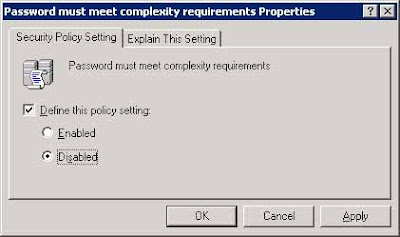
Right-click on Passwords must meet complexity requirements.
Click Properties from the context menu.

Do not remove the check from the Define this policy setting checkbox.
Select the Disabled option.
(This will allow less complex passwords)
Double-click on Minimum Password Length in the right pane.
Enter a new minimum password length. Entering Zero (0) will remove the password requirement.
Do not remove the check from the Define this policy setting checkbox.
Click the OK button.

Close the Default Domain Security Settings window.
Type gpupdate /force at the Command Prompt. This will refresh the security policy without restarting.
Press the Enter.

For more info visit;
http://www.iishacks.com/index.php/2007/09/24/windows-server-2003-password-policy-changes/

Thursday, February 12, 2015
How to install Hindi font in windows xp

Also Read: How to format an unformatable Pendrive
Install Hindi font in windows xp
1. Go to start>control panel>Regional and Language option>Language tab.2. Now enable the option "install files for complex script and right-to-left languages" and click Apply.
3. A dialogue box will open which will say that you are about to copy files of some other languages. It will ask you to insert windows xp bootable cd.
4. When you insert the cd the files will start to copy. After process is done click on Details button and than click on Add button.
5. A new dialogue box will open showing a list of different scripts, select Hindi from them and than click OK button.
6. Now close the Regional and Language option. You will see a language bar option of EN or HI on the right side of taskbar, select HI from it to use Hindi font.
7. Now you will be able to write and see Hindi fonts on your computer.
Note: If you will not see language bar option in the taskbar than go to
start>control panel>Regional and language option>Languages tab>Details
click on Language Bar button, enable the options "Show language bar on the desktop" and "show additional language bar option in the taskbar" click OK and than Apply. Now the language bar option will be visible in the taskbar.