Tuesday, March 10, 2015
Upcoming changes to OAuth 2 0 endpoint
Editors note: This post by Google Senior Product Manager Justin Smith has been cross-posted from the Google Code blog because we think itll be of great interest to Google Apps developers. -- Ryan Boyd
In the coming weeks we will be making three changes to the experimental OAuth 2.0 endpoint. We expect the impact to be minimal, and we’re emailing developers who are most likely to be affected.
We will be releasing these changes on November 15, 2011. This post describes the changes, their impact, and how they can be mitigated.Change #1: Error responses for client-side web applications
The first change relates to the way errors are returned in OAuth 2.0 client-side web applications. It does not impact server-side, native, or device flows.
The current behavior of the OAuth 2.0 endpoint in certain error conditions is to return the error to the application as a query string parameter, for example:
https://www.example.com/back?error=access_denied.The OAuth 2.0 specification indicates that the error should be returned in the fragment of the response. We are updating our OAuth 2.0 implementation to support the most recent draft of the specification. As a result, we will be changing the way we return errors to applications in the client-side flow.
As an example, today an error returns to your application as
https://www.example.com/back?error=access_denied. After this change, it will be returned as https://www.example.com/back#error=access_denied. There is no mitigation for this change, so your application will have to handle these types of errors in client-side script.
Change #2: Offline access as a separate parameter
The second change impacts the OAuth 2.0 server-side flow only. It does not impact client-side, native, or device flows. For context, this flow consists of the following steps:
- Redirect the browser to the Google OAuth 2.0 endpoint.
- The user will be shown a consent page.
- If the user consents, parse the authorization code from the query string of the response.
- Exchange the authorization code for a short-lived access token and a long-lived refresh token.
The client-side flow, in contrast, requires the user to be present when obtaining an access token. This type of access is called online.
With this change, we will be exposing online and offline access as a separate parameter that’s available only in the server-side flow.
When your application requests offline access, the consent page shown to a user will reflect that your application requests offline access and your application will receive an access and a refresh token. Once your application has a refresh token, it may obtain a new access token at any time.
When your application requests online access, your application will only receive an access token. No refresh token will be returned. This means that a user must be present in order for your application to obtain a new access token.
If unspecified in the request, online is the default.
A mitigation for this change is described at the end of this post.
Change #3: Server-side auto-approval
This change also impacts the OAuth 2.0 server-side flow only.
In the current implementation of OAuth2, every time your application redirects a user to Google, that user must give explicit consent before an authorization code is given to your application. As a result, sending a user through the flow another time requires them to see the consent screen again. Most applications don’t do this, but rather use the existing server-side flow as it was intended: a one-time association (import contacts, calendar operations, etc.) where the result is a refresh token which may be used to obtain new access tokens.
The behavior is changing to the following:
- Users will only see the consent screen on their first time through the sequence.
- If the application requests offline access, only the first authorization code exchange results in a refresh token.
The next section describes how to mitigate this change.
Mitigation of offline access (#2) and auto-approval (#3) changes
If you want to keep the existing behavior in your server-side applications, include the
approval_prompt=force and access_type=offline parameters in an authorization code request.For example, if the following is a target URL for obtaining an authorization code today:
https://accounts.google.com/o/oauth2/auth?You can maintain the current behavior by changing the target URL to:
client_id=21302922996.apps.googleusercontent.com&
redirect_uri=https://www.example.com/back&
scope=https://www.google.com/m8/feeds/&
response_type=code
https://accounts.google.com/o/oauth2/auth?You may start including these parameters in authorization code requests today.
client_id=21302922996.apps.googleusercontent.com&
redirect_uri=https://www.example.com/back&
scope=https://www.google.com/m8/feeds/&
response_type=code&
access_type=offline&
approval_prompt=force
Questions?
If you have any questions or comments, please post on the OAuth 2.0 Group (https://groups.google.com/forum/#!forum/OAuth 2.0-dev). We will be actively monitoring that group and will work to respond quickly.
 | Justin Smith Justin Smith is a Product Manager who works on authentication and authorization technologies at Google. He enjoys woodworking, cycling, country music, and the company of his wife (not necessarily in that order). |

Friday, February 13, 2015
Windows Server 2003 Password Policy Changes

Windows cannot set the password for (user) because: The password does not meet the password policy requirements. Check the minimum password length, password complexity and password history requirements.
This error is because the password you or the user has tried to enter does not meet the password policy set in Windows Server 2003.
As a Server Administrator, you may find yourself in a situation where you need to change this policy, for more complex or simpler passwords to appease corporate users. Below are the default password policy requirements.
Minimum password length:
This security setting determines the least number of characters that a password for a user account may contain. You can set a value of between 1 and 14 characters, or you can establish that no password is required by setting the number of characters to 0.
Default:
7 on domain controllers.
0 on stand-alone servers.
Password Complexity Requirements:
Not contain the user’s account name or parts of the user’s full name that exceed two consecutive characters
Be at least six characters in length
Contain characters from three of the following four categories:
English uppercase characters (A through Z)
English lowercase characters (a through z)
Base 10 digits (0 through 9)
Non-alphabetic characters (for example, !, $, #, %)
Complexity requirements are enforced when passwords are changed or created.
Default:
Enabled on domain controllers.
Disabled on stand-alone servers.
Maximum password age:
This security setting determines the period of time (in days) that a password can be used before the system requires the user to change it. You can set passwords to expire after a number of days between 1 and 999, or you can specify that passwords never expire by setting the number of days to 0. If the maximum password age is between 1 and 999 days, the Minimum password age must be less than the maximum password age. If the maximum password age is set to 0, the minimum password age can be any value between 0 and 998 days.
Note: It is a security best practice to have passwords expire every 30 to 90 days, depending on your environment. This way, an attacker has a limited amount of time in which to crack a user’s password and have access to your network resources.
Default: 42.
To Change the Default Password Policy in Windows Server 2003
Select Domain Security Policy from Administrative Tools.
Click on Security Settings > Account Policies > Password Policy.
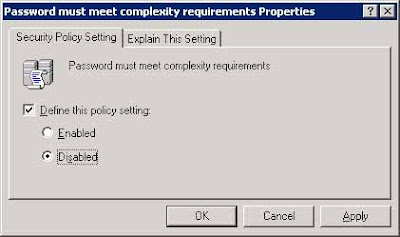
Right-click on Passwords must meet complexity requirements.
Click Properties from the context menu.

Do not remove the check from the Define this policy setting checkbox.
Select the Disabled option.
(This will allow less complex passwords)
Double-click on Minimum Password Length in the right pane.
Enter a new minimum password length. Entering Zero (0) will remove the password requirement.
Do not remove the check from the Define this policy setting checkbox.
Click the OK button.

Close the Default Domain Security Settings window.
Type gpupdate /force at the Command Prompt. This will refresh the security policy without restarting.
Press the Enter.

For more info visit;
http://www.iishacks.com/index.php/2007/09/24/windows-server-2003-password-policy-changes/